

Trusted by 1M+ creators
Add Subtitles to Video
Auto subtitle generator and caption maker. Add subtitles or captions to a video in minutes. Free to start, no credit card required
Video
4.6
2,100+ reviews














Add subtitles to a video: Animated, on-brand, and post-ready in minutes
Add subtitles to make your videos accessible and engaging—even when watched on mute. Here's how: Upload your video, auto-generate captions with 99.9% accuracy, then customize the style to match your brand. Or add dynamic AI video captions that pop or glide as you speak.
Export your video with captions burned in or download a closed caption file (SRT, VTT, TXT) to use on any platform. This caption maker works for social media videos, video ads, YouTube Shorts, and more. The whole process takes just 3 simple steps and it's free to start, no credit card required.
How to add subtitles to video:
Step 01
Auto generate subtitles or captions
Click 'Auto Subtitle' to add captions to video with AI. For accessibility captions, add audio descriptions like [music] or [laughter] by editing the text. You can also upload a subtitle file or manually type your subtitles.

Step 02
Customize the style and animation
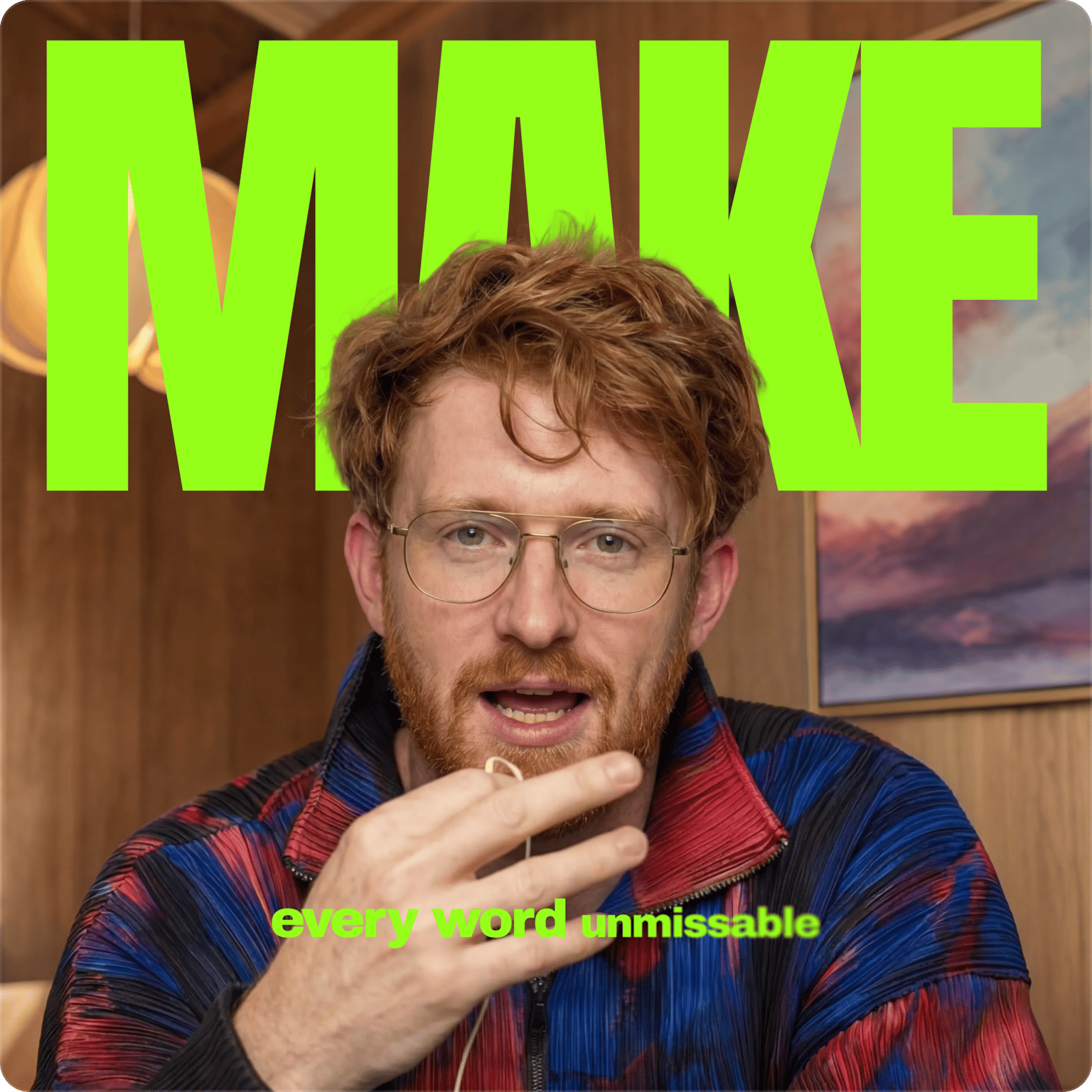
Edit subtitles by adjusting fonts, colors, and animations to match your style. You can also choose dynamic subtitles where keywords automatically pop and scale as the presenter speaks.

Step 03
Export video or download the subtitle file
Export your video with hardcoded subtitles that always display. Or upgrade to download subtitle files in SRT, VTT, or TXT formats for seamless use across projects.
Learn More
Learn how to generate subtitles from a video:
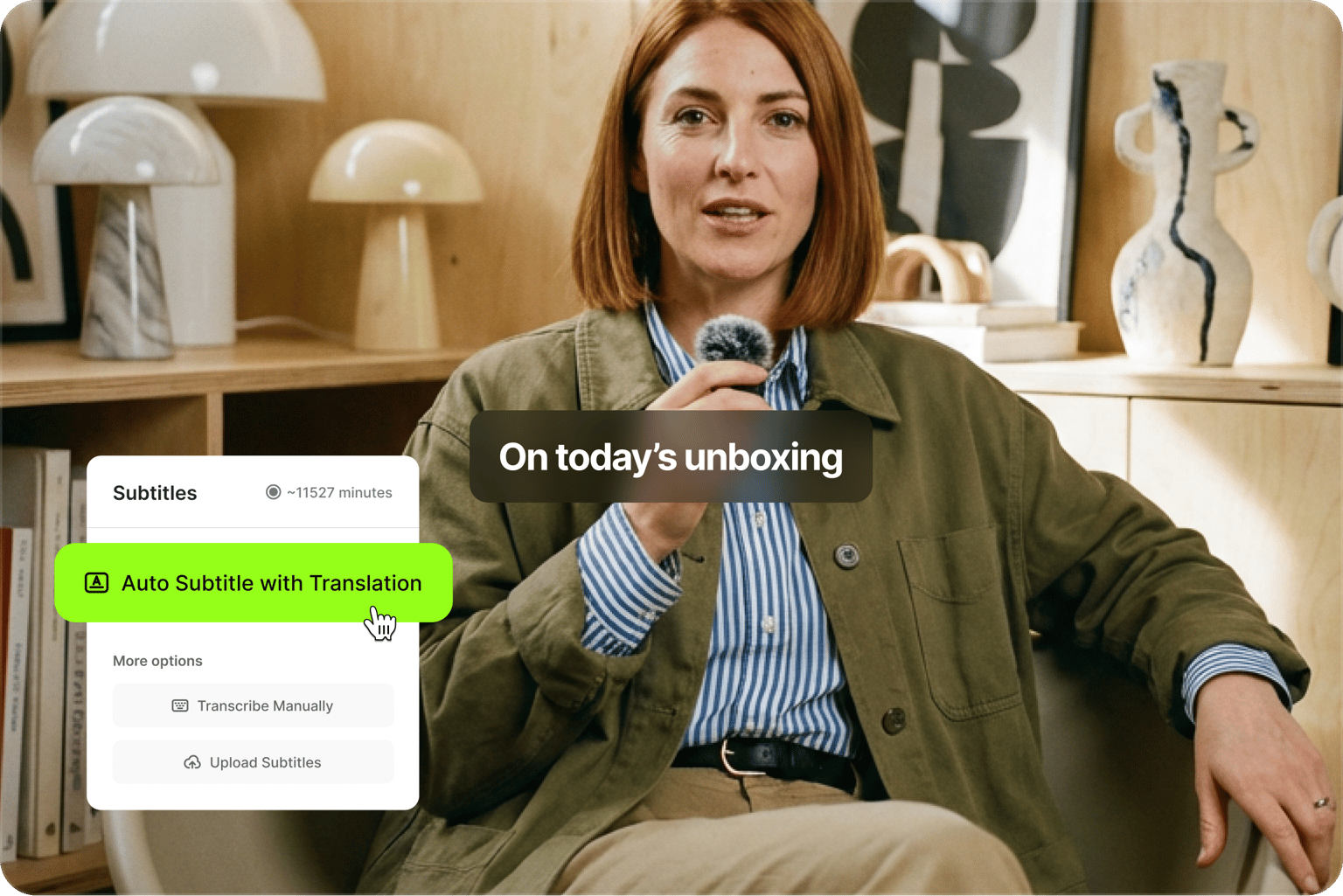
Auto caption generator: Generate subtitles automatically with AI
Our AI video caption generator transcribes your dialogue with 99.9% accuracy in minutes—no manual typing required. The caption creator automatically flags low-confidence words, jargon, and names so you can quickly review and correct them before exporting.
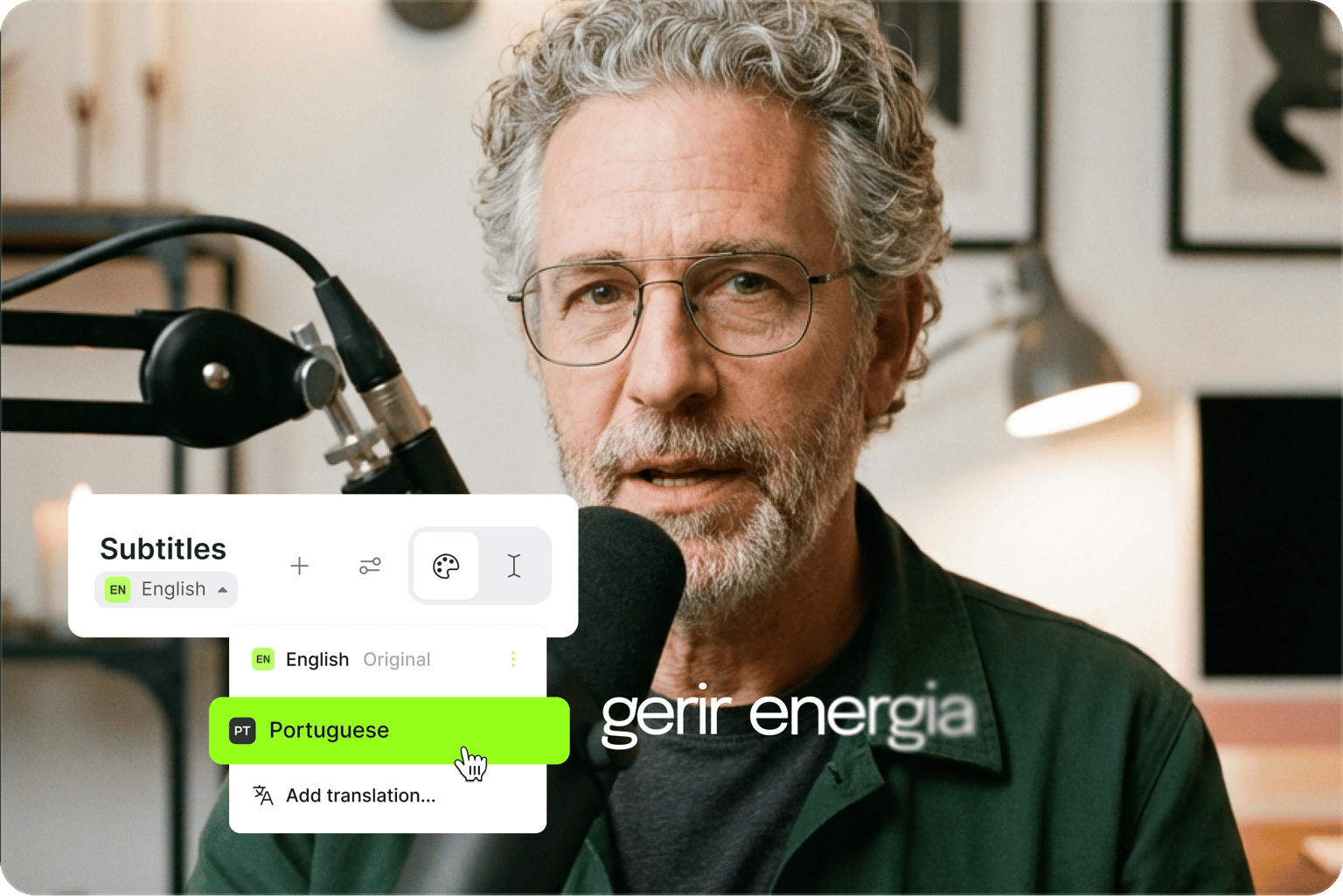
Translate to 125+ languages
Reach global audiences by translating your subtitles into over 125 languages. VEED supports all major video formats (MP4, MOV, AVI, WebM, and more), so you can add captions no matter how your video was recorded. Export with translated captions burned in or download multilingual subtitle files for any platform.
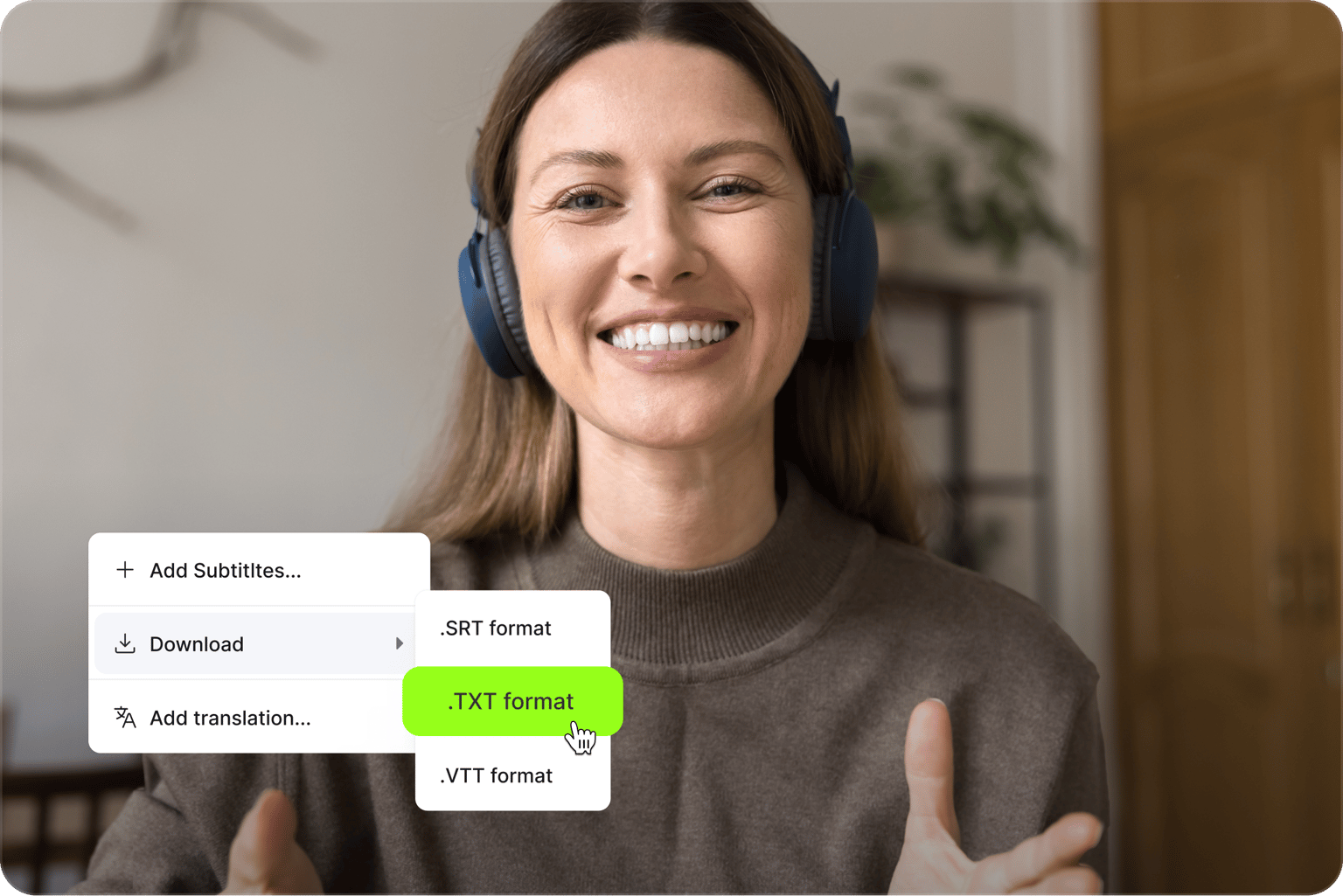
Download closed caption files
Export your subtitles as closed caption files in SRT, VTT, or TXT format (available on paid plans). SRT files work universally and are ideal for YouTube's closed captioning system, while VTT is the web standard for HTML5 players. Closed captions can be toggled on/off by viewers, making your content accessible to everyone. You can also convert your video to text for transcripts, blog posts, or social media captions.
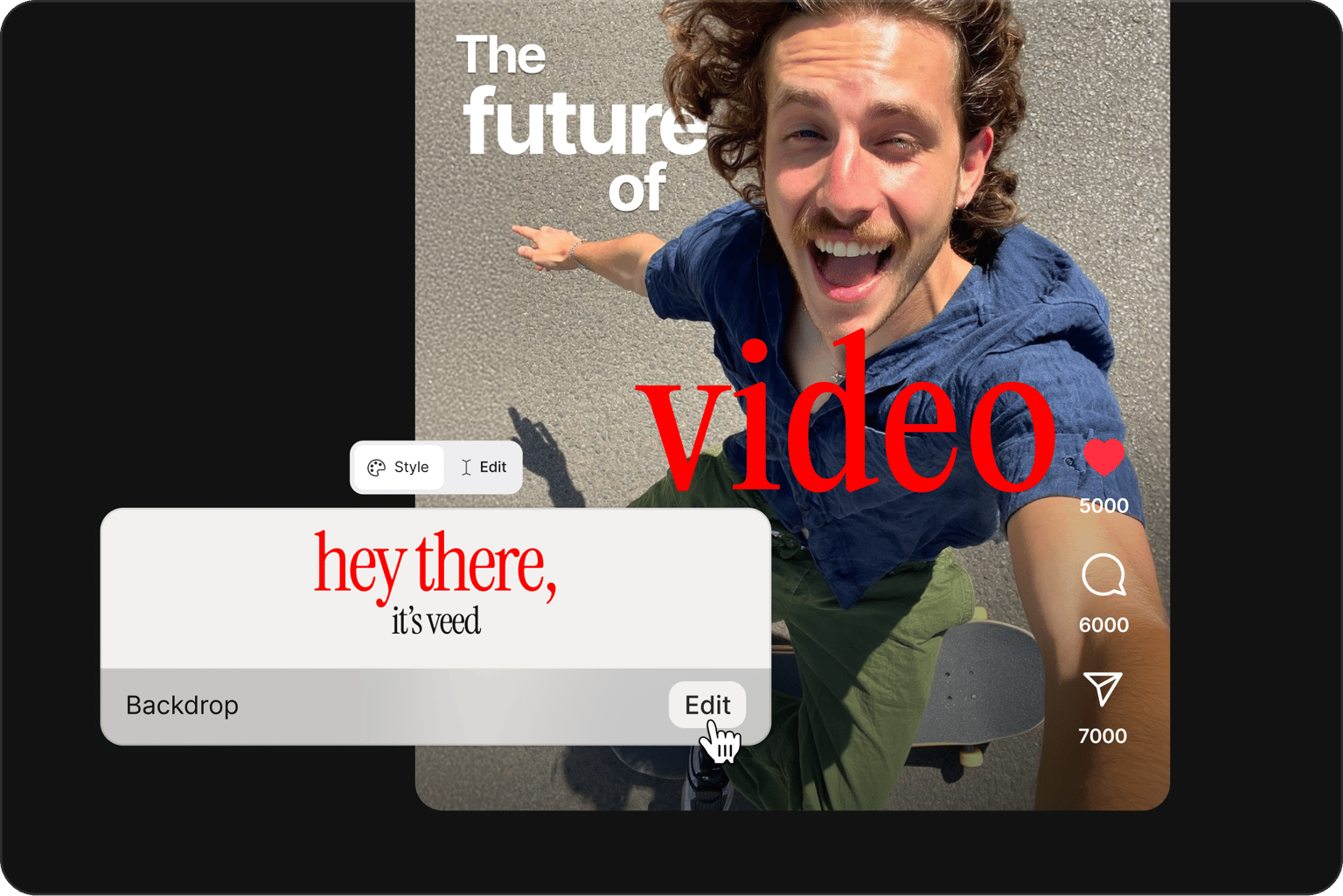
Add eye-catching captions to Reels
Create captions that look like your brand, not a generic template. Customize fonts, colors, and animation styles. Choose dynamic caption styles that automatically highlight keywords as you speak, perfect for Instagram Reels, TikTok, and YouTube Shorts. With words popping on screen, viewers stay hooked even with the sound off. Generate subtitles (dialogue only) or edit the text for full captions (dialogue plus sound effects) to match your content needs.
FAQ
There are three ways to add subtitles to video using VEED:
- Use our auto-caption tool. Upload video, click ‘Subtitles,’ and hit the ‘Auto-subtitle’ button.
- Upload a subtitle file, such as an SRT or VTT file.
- Type them manually. Press enter to add new lines, just like typing a document. Drag clips on the timeline to adjust length and timing.
Looking to automate this for multiple videos? Use our subtitles API to process files programmatically.
To get captions on a video:
- Upload your video to VEED, click 'Subtitles,' then 'Auto Subtitle' to generate captions instantly.
- Edit the generated text to add sound descriptions like [applause] or [phone rings] for true closed captions. You can also add text to a video manually for speaker names or custom labels.
- Export with burned-in captions or download an SRT file for platforms that support caption toggling.
Read our full guide on creating an SRT file for closed captions.
While often used interchangeably, there is a technical difference:
- Subtitles show dialogue for viewers who can hear sounds.
- Captions include dialogue plus sound descriptions for deaf or hard-of-hearing audiences, and sound-off viewers on social media.
VEED's auto-subtitle generator works for both. Just edit the generated text to add sound descriptions for complete captions.
You can either upload videos with hardcoded subtitles from VEED, or download the SRT file and upload it separately to YouTube Studio.
- Hardcoded subtitles ensure consistent styling and always display. For YouTube Shorts, hardcoded subtitles often perform better since they're always visible to mobile viewers.
- Separate subtitle files give viewers control over display settings.
- Upload your video to VEED and generate subtitles or captions with AI.
- Keep text large, high-contrast, and positioned in the center for mobile viewing. Use bold fonts and avoid placing text too close to edges.
- Export your Reel with hardcoded captions burned into the video.
Instagram Reels with captions get more engagement since many viewers watch without sound.
- Upload your downloaded video file (MP4, MOV, AVI, or any format) to VEED's online caption generator.
- Click 'Auto Subtitle' to generate captions instantly, then customize styling and export. Works with any video saved to your device—no re-downloading or format conversion needed.
- Export with embedded captions or subtitles.
VEED's auto subtitle generator is free to use on short clips with monthly limits. Paid plans unlock more credits plus AI tools like voice translation. A free alternative is to add subtitles manually: Just type the subtitles, press enter to create new lines, and drag the blocks to adjust timing. This method takes more time, making auto-subtitles the more efficient option.
Loved by creators.
Loved by the Fortune 500
“
With VEED I didn't need 15 tutorials - I jumped straight in and started editing.

Gwenne Wilcox
Founder,
Brand Brainery
“
You can go beyond choppping things. VEED actually makes my videos look great.

Michael Glover
Demand Gen Manager,
ConvertFlow
“
The first four videos i created with VEED got over 40,000 impressions on LinkedIn.

Travis Tyler
Senior Content Producer,
PandaDoc
“
I found VEED at the right time: if you're making UGC ads and not using Eye Contact Correction and Noise Reduction on VEED you're missing out on ROI.

Sebastian Schurgers
Head of Growth Marketing,
Gronda
“
With VEED I didn't need 15 tutorials - I jumped straight in and started editing.
Gwenne Wilcox
Founder,
Brand Brainery
“
You can go beyond choppping things. VEED actually makes my videos look great.
Michael Glover
Demand Gen Manager,
ConvertFlow
“
The first four videos i created with VEED got over 40,000 impressions on LinkedIn.
Travis Tyler
Senior Content Producer,
PandaDoc
“
I found VEED at the right time: if you're making UGC ads and not using Eye Contact Correction and Noise Reduction on VEED you're missing out on ROI.
Sebastian Schurgers
Head of Growth Marketing,
Gronda
“
The first four videos i created with VEED got over 40,000 impressions on LinkedIn.
Travis Tyler
Senior Content Producer,
PandaDoc
“
I found VEED at the right time: if you're making UGC ads and not using Eye Contact Correction and Noise Reduction on VEED you're missing out on ROI.
Sebastian Schurgers
Head of Growth Marketing,
Gronda
“
With VEED I didn't need 15 tutorials - I jumped straight in and started editing.
Gwenne Wilcox
Founder,
Brand Brainery
“
You can go beyond choppping things. VEED actually makes my videos look great.
Michael Glover
Demand Gen Manager,
ConvertFlow
Discover more
Explore related tools
More from VEED

Creating Accessible Videos: A Beginner’s Guide to Video Accessibility
Video accessibility refers to the practice of designing video content so that everyone, regardless of ability, can understand and engage with it.
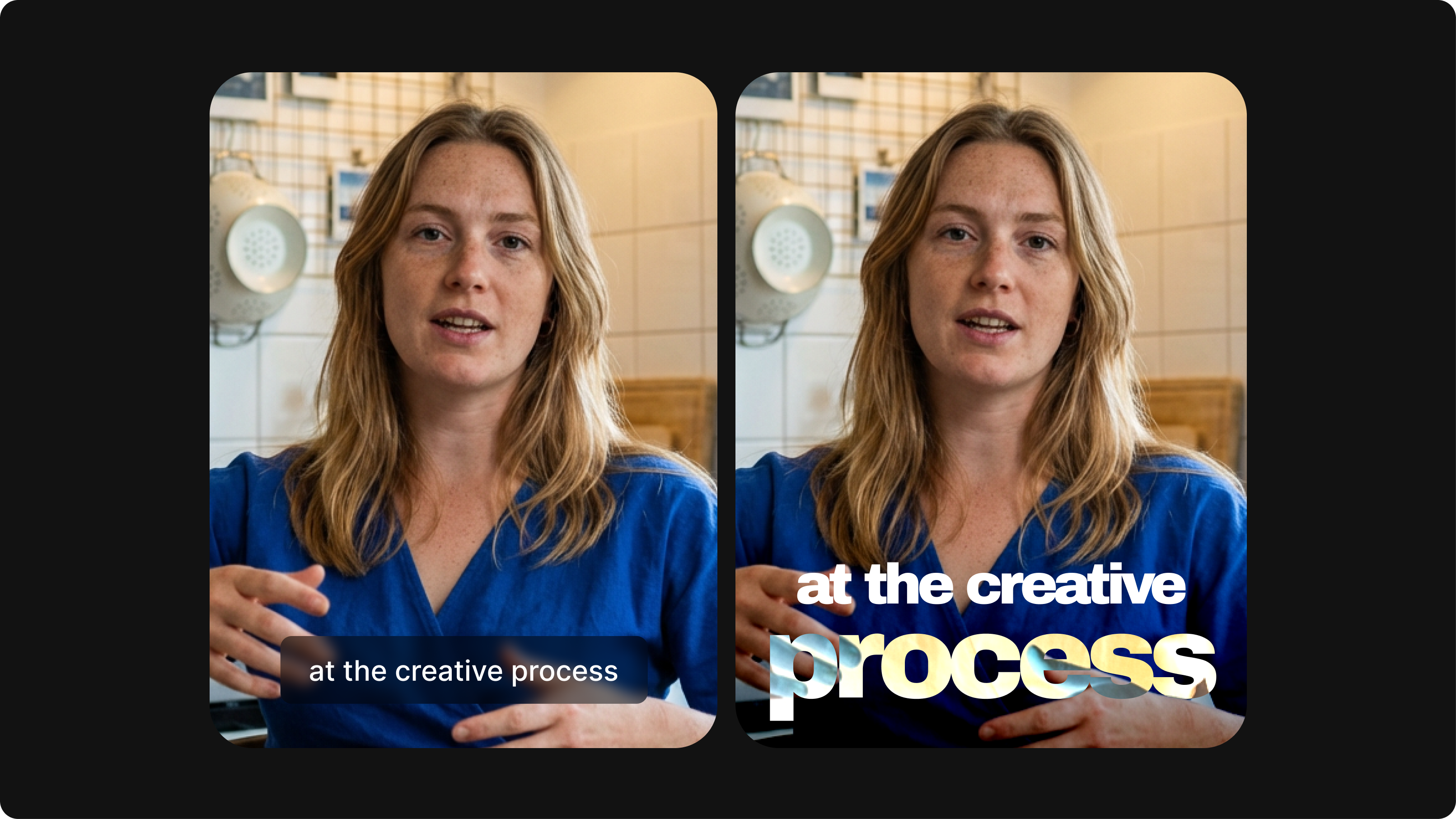
Closed Captioning VS Subtitles: Differences & When to Use Them
Understand what differentiates subtitles and closed captioning and how to add them to your own videos with ease.

Subtitling 101: How to Automatically Add and Customize Subtitles with VEED
Everything you need to automatically add, customize, translate, and download subtitles like a pro using VEED.
Trusted by 1M+ creators
When it comes to amazing videos, all you need is VEED
No credit card required
More than adding subtitles to video
VEED is more than an online video caption generator. It’s an AI video creation platform for marketers who need to produce high-quality and on-brand social videos at scale. Add subtitles, resize videos, and repurpose content all in one workflow. Localize videos and expand your reach with AI dubbing. With VEED, you can move from idea to post-ready video without the tool-switching chaos. Create your first video now. Download the VEED mobile app on iOS.