


Trusted by 1M+ creators
AVI to MPEG
Convert AVI to MPEG and other video formats to AVI online, free
No credit card required
4.6
2,100+ reviews















How to Convert AVI to MPEG:
Step 01
Upload a file
Upload the AVI file you wish to convert. Just drag & drop it onto the page, or click the blue button to choose from a folder on your device (you can also add files from Dropbox, or even straight from a YouTube URL).
Step 02
Convert your video
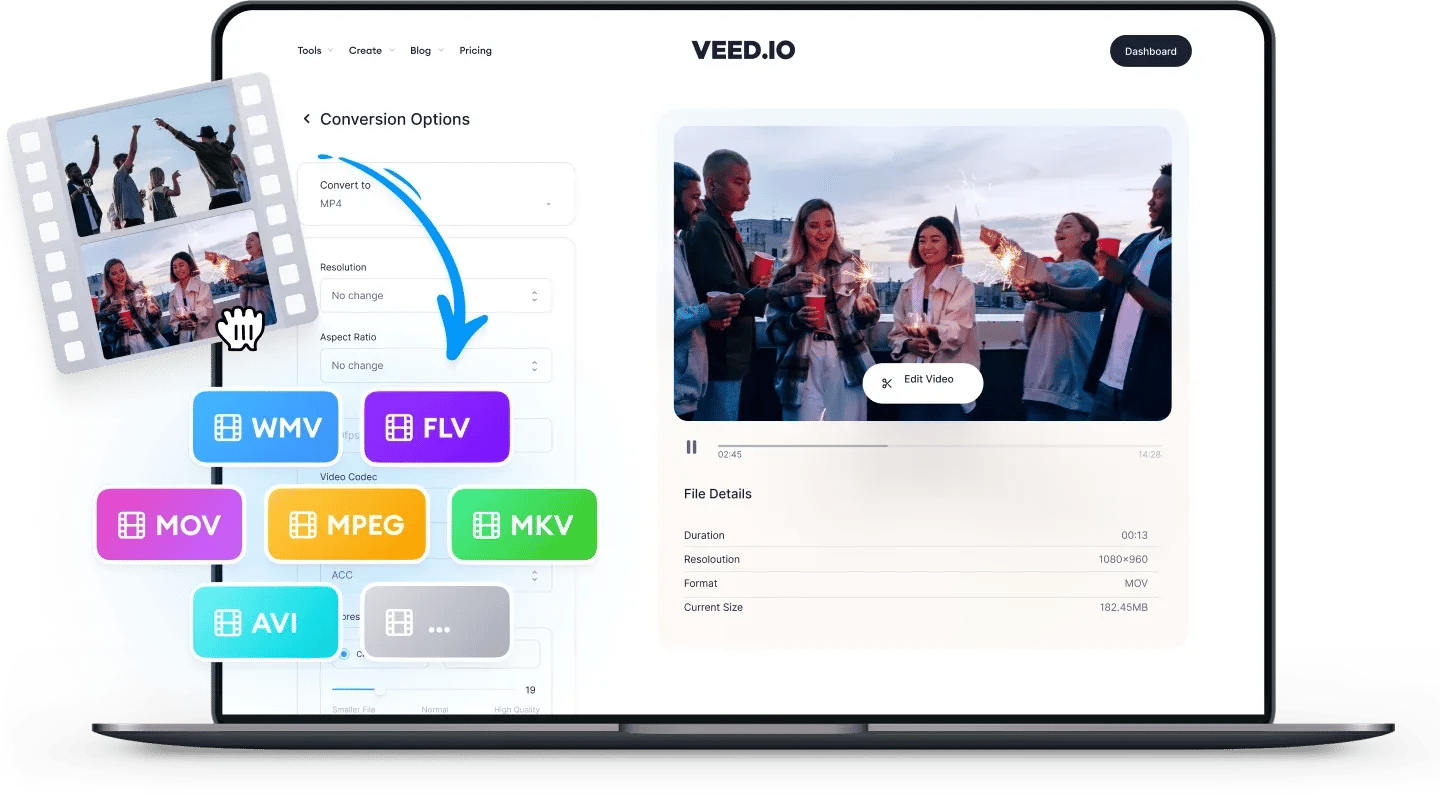
Choose MPEG as the output format, by selecting from the dropdown list of file types. Then just press ‘Convert File’. It’s that easy!
Step 03
Download (& Edit) your video
Hit the ‘Download File’ button to save your newly converted GIF file. You can also click the ‘Edit’ button to add text, auto-subtitles, progress bars, and more to your video. It’s super-easy, with VEED!
Learn More
‘Convert AVI to MPEG’ Tutorial
AVI
AVI is the most compatible video format for Windows devices. You can upload it to Facebook and YouTube, but not to other mobile-based social media platforms like Instagram and TikTok.
AVI files tend to be larger in size (because they use less compression than video formats like MP4). The most compatible media player for AVI videos is VLC. AVI is not compatible with QuickTime (the default player on Apple devices). AVI stands for Audio Video Interleave. AVI files can contain audio and video content, as well as codecs for DVD and XVid.
MPEG
MPEG is used to store films and movies. You can upload MPEG videos to Facebook and YouTube but not to mobile-based social media platforms like Instagram and TikTok. VLC is the best media player to play MPEG videos but they cannot be opened on QuickTime.
MPEG stands for Moving Pictures Expert Group. They are usually compressed as MPEG2 or MPEG4, which makes them quicker to download and easier to stream. Videos stored as MPEG are of a higher quality than rivaling formats, as they can compress data at a higher rate. MPEG4 files are best for mobile devices as they are compressed into smaller file sizes than MPEG2.
FAQ
- Select your AVI video and upload it to VEED
- Choose MPEG from the dropdown and click Convert
- Export the video
Easy. Upload AVI to VEED, choose MP4 from the dropdown menu in Step 2, and export as normal.
Yes! AVI files tend to have larger file sizes than other formats like MPEG or MP4. Use VEED’s converter to convert, compres, cut, and resize AVI files - all in the same tool.
AVI files use less compression compared to MPEG and other formats, which makes them a relatively heavier format. Use VEED to convert AVI files to a smaller file format with a compression codec, or to compress AVI files and maintain the same format.
Loved by creators.
Loved by the Fortune 500
“
With VEED I didn't need 15 tutorials - I jumped straight in and started editing.

Gwenne Wilcox
Founder,
Brand Brainery
“
You can go beyond choppping things. VEED actually makes my videos look great.

Michael Glover
Demand Gen Manager,
ConvertFlow
“
The first four videos i created with VEED got over 40,000 impressions on LinkedIn.

Travis Tyler
Senior Content Producer,
PandaDoc
“
I found VEED at the right time: if you're making UGC ads and not using Eye Contact Correction and Noise Reduction on VEED you're missing out on ROI.

Sebastian Schurgers
Head of Growth Marketing,
Gronda
“
With VEED I didn't need 15 tutorials - I jumped straight in and started editing.
Gwenne Wilcox
Founder,
Brand Brainery
“
You can go beyond choppping things. VEED actually makes my videos look great.
Michael Glover
Demand Gen Manager,
ConvertFlow
“
The first four videos i created with VEED got over 40,000 impressions on LinkedIn.
Travis Tyler
Senior Content Producer,
PandaDoc
“
I found VEED at the right time: if you're making UGC ads and not using Eye Contact Correction and Noise Reduction on VEED you're missing out on ROI.
Sebastian Schurgers
Head of Growth Marketing,
Gronda
“
The first four videos i created with VEED got over 40,000 impressions on LinkedIn.
Travis Tyler
Senior Content Producer,
PandaDoc
“
I found VEED at the right time: if you're making UGC ads and not using Eye Contact Correction and Noise Reduction on VEED you're missing out on ROI.
Sebastian Schurgers
Head of Growth Marketing,
Gronda
“
With VEED I didn't need 15 tutorials - I jumped straight in and started editing.
Gwenne Wilcox
Founder,
Brand Brainery
“
You can go beyond choppping things. VEED actually makes my videos look great.
Michael Glover
Demand Gen Manager,
ConvertFlow
Supported file formats:
Explore related tools
- AAC to M4A
- AAC to MP3
- AAC to MP4
- AAC to WAV
- Audio to MP3
- Audio to Video Converter
- AVI to FLV
- AVI to GIF
- AVI to MKV
- AVI to MOV
- AVI to MP3
- AVI to MP4
- AVI to MPEG
- AVI to SWF
- AVI to VOB
- AVI to WAV
- AVI to WebM
- AVI to WMV
- Facebook Video to GIF
- FLAC to AAC
- FLAC to M4A
- FLAC to MP3
- FLAC to MP4
- FLAC to OGG
- FLAC to WAV
- FLAC to WMA
- FLV to AVI
- FLV to GIF
- FLV to MKV
- FLV to MOV
- FLV to MP3
- FLV to MP4
- FLV to MPEG
- FLV to SWF
- FLV to WAV
- FLV to WebM
- FLV to WMV
- GIF to AVI
- GIF to MOV
- GIF to MP4
- GIF to MPEG
- GIF to SWF
- GIF to Video
- GIF to WebM
- GIF to WMV
- Instagram Video to GIF
- M4A to AAC
- M4A to FLAC
- M4A to MP2
- M4A to MP3
- M4A to MP4
- M4A to OGG
- M4A to WAV
- M4A to WMA
- M4A to WMV
- MKV to AVI
- MKV to GIF
- MKV to MOV
- MKV to MP3
- MKV to MP4
- MKV to MPEG
- MKV to VOB
- MKV to WAV
- MKV to WMV
- MOV to AVI
- MOV to FLV
- MOV to GIF
- MOV to MKV
- MOV to MP3
- MOV to MP4
- MOV to MPEG
- MOV to SWF
- MOV to WAV
- MOV to WebM
- MOV to WMV
- MP2 to MP3
- MP3 to AAC
- MP3 to AVI
- MP3 to FLAC
- MP3 to FLV
- MP3 to M4A
- MP3 to MOV
- MP3 to MP2
- MP3 to MP4
- MP3 to MPEG
- MP3 to OGG
- MP3 to OPUS
- MP3 to SWF
- MP3 to WAV
- MP3 to WebM
- MP3 to WMA
- MP3 to WMV
- MP4 to AAC
- MP4 to AVI
- MP4 to FLAC
- MP4 to FLV
- MP4 to GIF
- MP4 to M4A
- MP4 to MKV
- MP4 to MOV
- MP4 to MP3
- MP4 to MPEG
- MP4 to OGG
- MP4 to SWF
- MP4 to TS
- MP4 to VOB
- MP4 to WAV
- MP4 to WebM
- MP4 to WMA
- MP4 to WMV
- MPEG to AVI
- MPEG to GIF
- MPEG to MOV
- MPEG to MP3
- MPEG to MP4
- MPEG to WAV
- OGG to M4A
- OGG to MP3
- OGG to MP4
- OGG to WAV
- OPUS to MP3
- Opus to MP4
- OPUS to WAV
- SWF to AVI
- SWF to FLV
- SWF to GIF
- SWF to MOV
- SWF to MP3
- SWF to MP4
- SWF to WebM
- TikTok to GIF
- TS to AVI
- TS to MKV
- TS to MP3
- TS to MP4
- Twitter Video to GIF
- Video to Audio
- Video to GIF
- VOB to AVI
- VOB to MKV
- VOB to MOV
- VOB to MP3
- VOB to MP4
- VOB to MPEG
- VOB to WMV
- WAV to AAC
- WAV to AVI
- WAV to FLAC
- WAV to M4A
- WAV to MOV
- WAV to MP2
- WAV to MP3
- WAV to MP4
- WAV to OGG
- WAV to WMA
- WAV to WMV
- WebM to AVI
- WebM to GIF
- WebM to MOV
- WebM to MP3
- WebM to MP4
- WebM to WAV
- WebM to WMV
- WMA to FLAC
- WMA to M4A
- WMA to MP3
- WMA to MP4
- WMA to OGG
- WMA to WAV
- WMV to AVI
- WMV to FLV
- WMV to GIF
- WMV to MKV
- WMV to MOV
- WMV to MP3
- WMV to MP4
- WMV to MPEG
- WMV to WAV
- WMV to WEBM
Trusted by 1M+ creators
When it comes to amazing videos, all you need is VEED
No credit card required
More than an AVI to MPEG converter
With VEED, you can do so much more than just convert your video files! Our extensive toolkit lets you cut, compress, resize and edit your videos all in one place. You don’t even need to create an account, or download any apps! Simply upload your videos to VEED in your browser, and sprinkle them with our super-cool features and additions. Compatible with Windows 10, Mac, Chrome OS, and mobile devices.