


Trusted by 1M+ creators
Remove Audio From Video
Fast, easy, free. Mute your videos in seconds with our online video editor
No credit card required

4.6
2,100+ reviews















Mute Your Video Online, Free
VEED is an online video editor that lets you remove audio tracks in just a few clicks. You can mute a portion of the video or the entire video. No software to install. Do it straight from your browser. Our audio remover tool is free. No need to pay for expensive apps like Adobe Premiere Pro! Plus, it is incredibly easy to use. You don’t need any experience in video editing. You can also add your own audio files after removing the original audio from your video. Add background music, sound effects, and more. Simply upload your video, click on the mute button, and add an audio file (optional). Export your video as an MP4 file and share it on social media!
How to Remove Audio From a Video
Step 01
Upload your video
Click on ‘Choose Video’ and select the video from your folder. Or you can drag and drop it into the editor.

Step 02
Mute the audio
Select the video on the editor and click on the sound icon to mute it. That’s it! You’ve removed the audio from your video.
Step 03
Export
You can now download your new video. Click on ‘Export’ and your video will be exported as an MP4 file.
Learn More
‘Mute Video’ Tutorial

Mute a portion of the video or the entire video
If you only want to remove the audio for some parts of your video, you can split the video into parts and then mute selected clips. To split the video, simply move the slider to the location that you want and click on the ‘Split’ tool right above the editor. Select the clip you want to mute and click on the sound icon to mute it. To mute the entire video, just select the video and click on the sound icon, and you’re done!
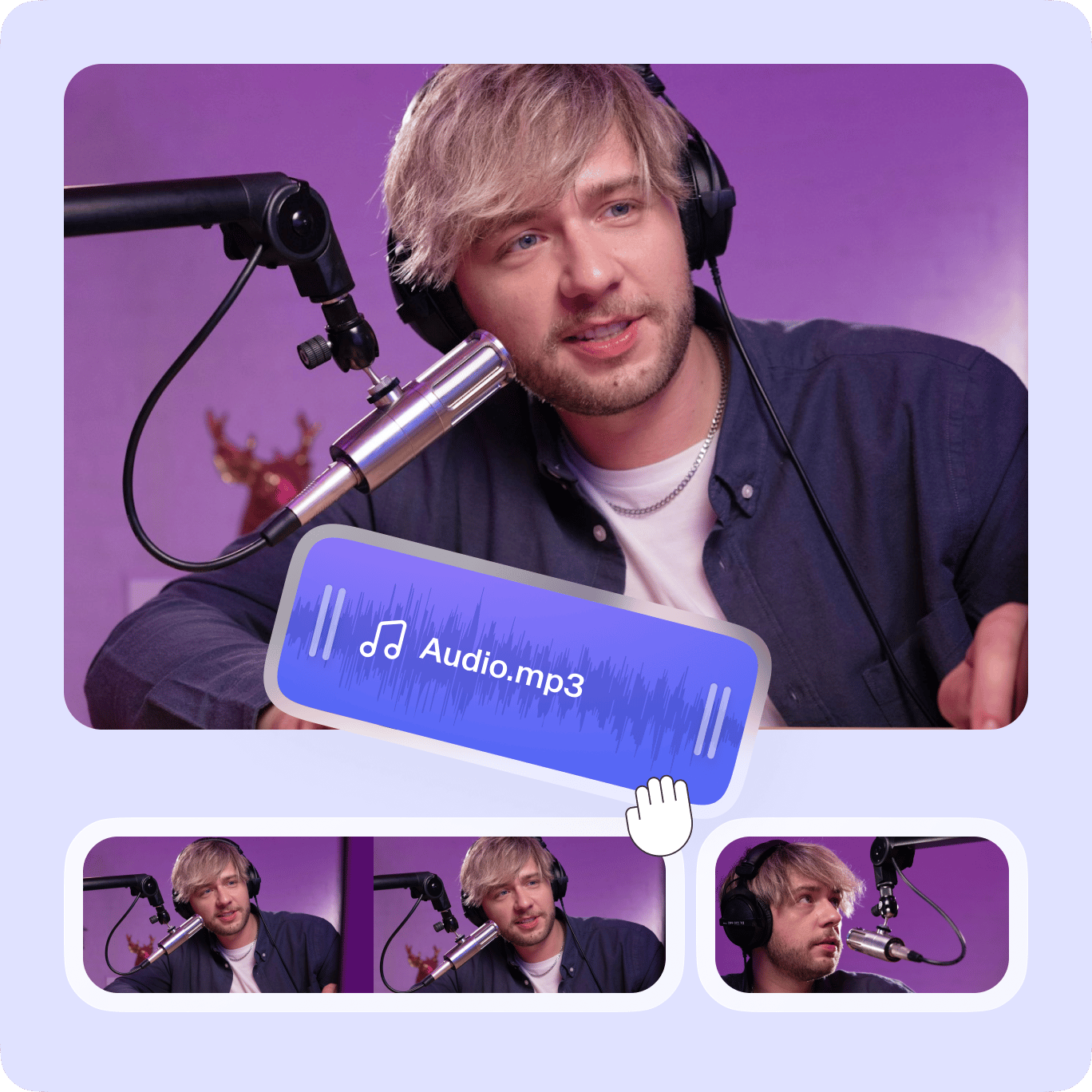
Add an audio file to replace the original
As an optional step, you can add an audio file to replace the original sound of your video. After muting the video, click on the plus (+) icon on the bottom-right or click on Upload on the left menu. You can add an MP3, WAV, M4A, and other popular audio file types. Add royalty-free audio to create awesome music videos. You can add sound effects, voiceovers, narration, dubs, and background music. To add audio to specific parts of the video, you can split it, and drag and drop the audio layer across the timeline.

Adjust the volume and mix sounds
If you don’t want to mute the audio entirely, you can lower its volume using the sound controls. Click on the video on the editing pane and move the slider beside the sound icon under Audio. What’s even cooler is this will also let you mix sounds. You can add as many audio files as you want, adjust each audio file’s volume, and mix them together. Each time you add an audio file, it will have its own layer on the timeline. You can put one on top of another to create a mix. Simply drag and drop the audio layers across the timeline. Be creative and use your DJ mixing skills!
FAQ
Upload your video to VEED then select the video on the editing pane. Click on the sound icon to mute it. This will remove the audio from your video. You will see the sound icon crossed out which means it’s been successfully muted.
VEED is an online video editing tool. You can use all its features straight from your browser. No need to install any software!
VEED works flawlessly on Android, iPhone, and all mobile devices! All you need to do is go to VEED on your mobile browser. It works smoothly on Chrome, Safari, Firefox, and other mobile browsers.
Our video editor features a tool that lets you clean the audio on a video. Simply select the video layer or the audio layer on the editing pane and click on ‘Clean Audio’. VEED will automatically enhance the sound on your video.
Yes, you can! And it’s super easy with VEED. Just upload your YouTube videos into the editor, click on the sound icon to mute the audio, then upload your desired audio file!
Simply upload two audio files and place one over the other on the editing pane. You can drag and drop each audio layer to move it across the timeline.
Loved by creators.
Loved by the Fortune 500
“
With VEED I didn't need 15 tutorials - I jumped straight in and started editing.

Gwenne Wilcox
Founder,
Brand Brainery
“
You can go beyond choppping things. VEED actually makes my videos look great.

Michael Glover
Demand Gen Manager,
ConvertFlow
“
The first four videos i created with VEED got over 40,000 impressions on LinkedIn.

Travis Tyler
Senior Content Producer,
PandaDoc
“
I found VEED at the right time: if you're making UGC ads and not using Eye Contact Correction and Noise Reduction on VEED you're missing out on ROI.

Sebastian Schurgers
Head of Growth Marketing,
Gronda
“
With VEED I didn't need 15 tutorials - I jumped straight in and started editing.
Gwenne Wilcox
Founder,
Brand Brainery
“
You can go beyond choppping things. VEED actually makes my videos look great.
Michael Glover
Demand Gen Manager,
ConvertFlow
“
The first four videos i created with VEED got over 40,000 impressions on LinkedIn.
Travis Tyler
Senior Content Producer,
PandaDoc
“
I found VEED at the right time: if you're making UGC ads and not using Eye Contact Correction and Noise Reduction on VEED you're missing out on ROI.
Sebastian Schurgers
Head of Growth Marketing,
Gronda
“
The first four videos i created with VEED got over 40,000 impressions on LinkedIn.
Travis Tyler
Senior Content Producer,
PandaDoc
“
I found VEED at the right time: if you're making UGC ads and not using Eye Contact Correction and Noise Reduction on VEED you're missing out on ROI.
Sebastian Schurgers
Head of Growth Marketing,
Gronda
“
With VEED I didn't need 15 tutorials - I jumped straight in and started editing.
Gwenne Wilcox
Founder,
Brand Brainery
“
You can go beyond choppping things. VEED actually makes my videos look great.
Michael Glover
Demand Gen Manager,
ConvertFlow
More from VEED

How to Add Music to an Instagram Post, Reel, or Story in 2026
Adding music to your Instagram content makes the video much more interactive and engaging while building retention among viewers. Here's how to do it for any Instagram post format.
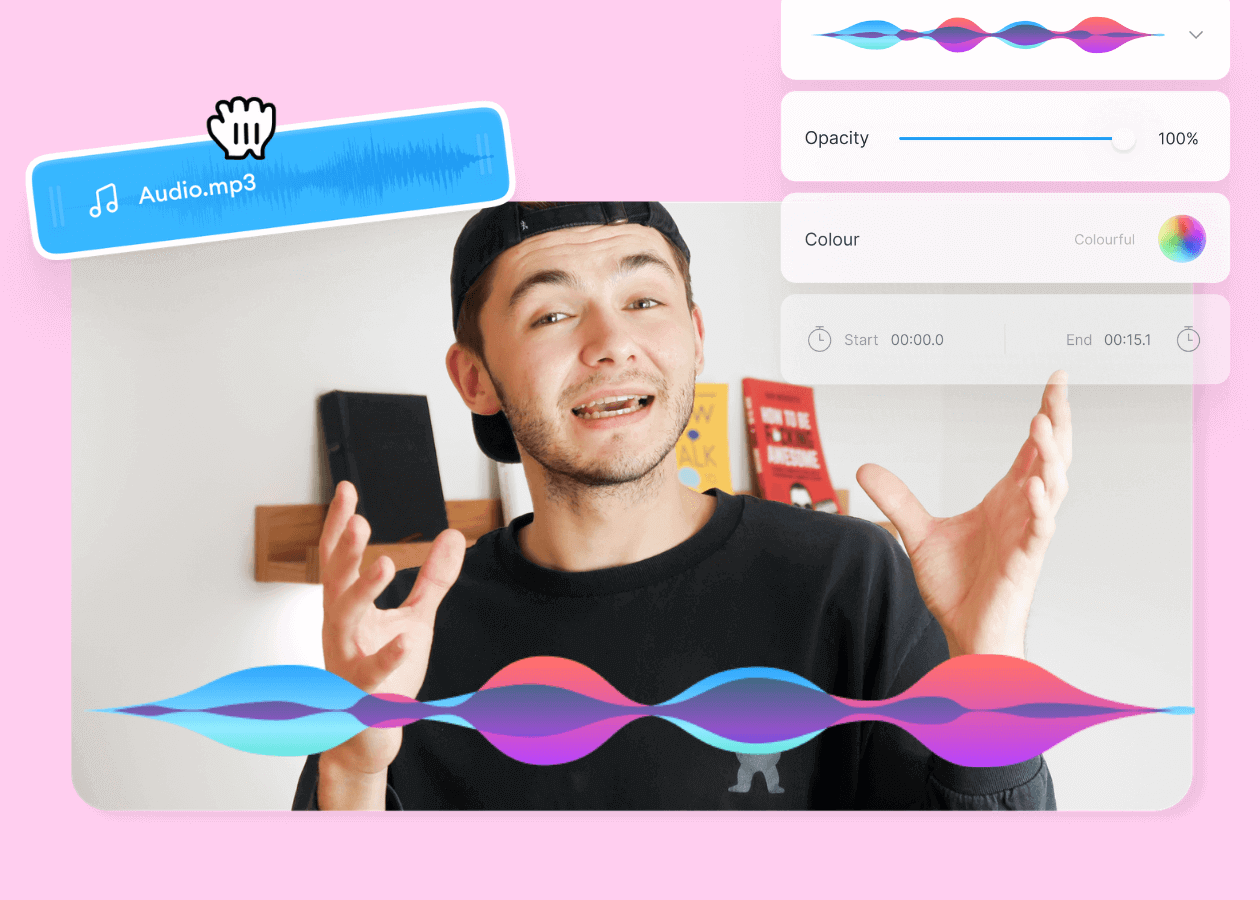
Top 5 Best Music Visualizers [Free and Paid]
Here are some of the best music visualizers available on the internet and how to use them!

11 Easy Ways to Add Music to Video [Step-By-Step Guide] in 2026
Not sure where to find music for video whether free or paid? Want to learn how to find it, pick the right song, and then add it to your video content? Then dig in!
Trusted by 1M+ creators
When it comes to amazing videos, all you need is VEED
No credit card required
More than removing audio from your video
VEED is a fully-packed video editing software that is completely browser-based. It’s a powerful app that lets you do so many things with your videos to make them look stunning and professional. You can crop, rotate, and resize your videos for different social media sites. Add audio, images, text, and more to make them look more interesting. Use VEED’s camera effects and filters to enhance them further. Create an account and experience our powerful video editor today!