AI tools are multiplying faster than you can test them. Each one promises something new, but juggling subscriptions, learning curves, and exports kills momentum. You start creating, and then spend hours switching tabs, second-guessing the right tool, instead of actually making your marketing videos.
That’s why we’ve now built our AI Playground inside the VEED editor! It’s your single space to try every leading gen AI video model, generate original footage, and build your final edit…all in one place. No switching tools. No broken workflow. Just creation, end to end.
With models like Sora 2, Veo, Pixverse, Kling, Seedance, and more, you can experiment freely and turn your wildest ideas into fully edited videos, faster than ever.

What is the AI Playground in the editor?
The AI Playground brings the world’s most advanced AI video generation models straight into VEED’s editor. It’s where you can prompt, preview, and polish your videos, without having to leave your workspace.
Here’s what makes it special:
- All models in one place: Generate videos using Veo, Sora, Pixverse, Kling, Seedance, and MiniMax, right inside VEED. No external tools, downloads, or juggling logins.
- Instant creative testing: Compare models side-by-side and see which one nails your vision. Try multiple looks, moods, and movements instantly.
- Effortless editing: Generated clips drop straight into your timeline, ready for trimming, subtitles, or overlays. Your workflow stays smooth.
- No subscriptions to manage: Forget paying for every new AI model that trends. VEED bundles access into one simple plan with AI credits.
What types of videos can I make?
The AI Playground opens up countless possibilities, but here are a few types of videos where it truly shines:
- Product Demos: Generate spokesperson-style clips or hands-on visuals to showcase your product in action.
- Brand Story Videos: Build cinematic stories that capture emotion and movement, perfect for campaigns and ads.
- Explainer Videos: Turn complex ideas into clear, engaging scenes with consistent visual style.
- Social Content: Create short, scroll-stopping videos that match your brand tone and trend rhythm.
- Lifestyle Videos: Craft natural, flowing scenes with human movement and smooth transitions.
- Music and Motion Edits: Sync visuals to soundtracks for intros, teasers, or rhythm-based videos.
- Action or Trailer-Style Clips: Add dynamic visuals, dramatic motion, and energy for high-impact campaigns.
How to get started with AI Playground in the editor
To get started, go to your VEED workspace and fire up a new project by clicking on Create > New Project. Then, follow these steps.
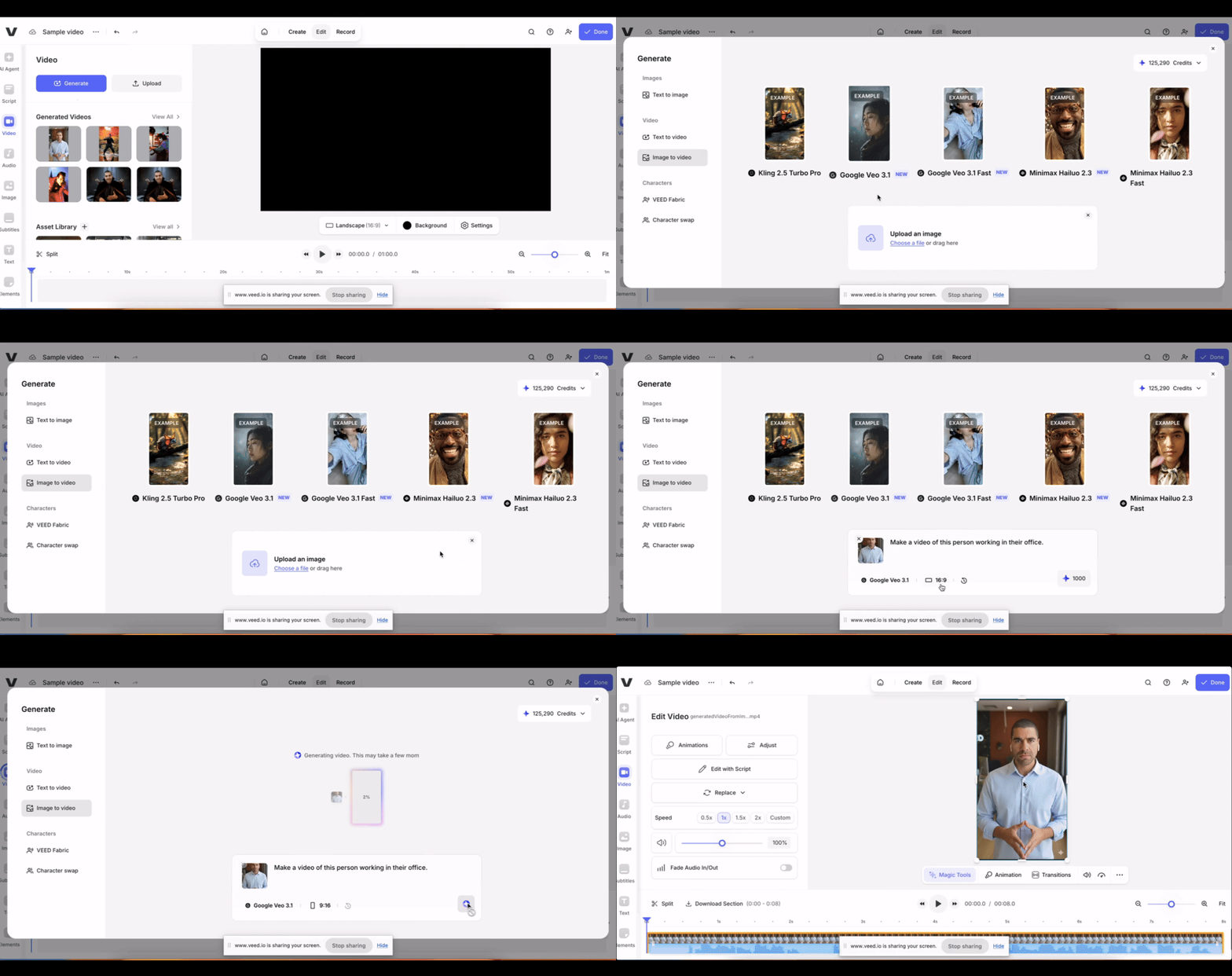
Step 1. Navigate to the AI Playground
In the left-hand panel, click on Video then Generate.
Alternatively, you can open this link to fire up the AI playground inside the editor 👉 veed.io/new?source=ai-playground

Step 2. Select a model of your choice
On the playground, you’ll be able to see all the leading gen AI video models available to try. Hover your cursor over the example outputs to see them play out.
We’ll keep this guide mainly limited to the AI video models. They’re listed under the Video category, and are organized into two types for ease of use:
- Text to video: Generate breathtaking video outputs based on text prompts. As of now, some of the models we offer include Kling 2.5 Turbo, OpenAI Sora 2, Sora 2 Pro, Google Veo 3.1, and Veo 3.1 Fast.
- Image to Video: Bring your still images to life with AI magic. Right now, some of the models under this category include Kling 2.5 Turbo, Google Veo 3.1, Google Veo 3.1 Fast, MiniMax Hailuo 2.3, and Hailuo 2.3 Fast.
You can also try VEED’s own gen AI models under the Characters category:
- Fabric: Create realistic-looking talking videos with templated and custom avatars/characters. Check out this guide to learn more.
- Character swap (VEED Animate): Replace the subject in an existing image with a dynamic character that mimics their movements.
🤔 Wondering which model to use? Every model produces a slightly different output, so we recommend trying all of them out first. But if you’re short on time, we’ve also left recommendations on which model is perfect for what types of videos later in this guide.
👉 Click here to skip ahead to that section. You can always scroll back up to this tutorial.
Step 3. Type in a prompt or upload an image
For a text to video model
- With a model of your choice selected, type in your video prompt in the prompt box.
- Select the aspect ratio.
- Click on the generate button with a blue diamond on the right. The number represents how many VEED AI credits it would cost you to generate your clip.
- Wait for your video to generate. Once generated, you can preview it or add it to your project. You can also simply download it.

🧠 Running low on creativity? Check out some of our Sora 2 prompts (that work great with other models as well) to get those creative juices flowing.
For an image to video model
- Pick an image to video model of your choice.
- Click on Upload image and browse the file from your device.
- Pick an aspect ratio. If it doesn’t match with the dimensions of your image, you will be notified.
- Type up a prompt of what you want your video to look like.
- Click on the generate button, and wait for your video to process. Once ready, you can add it to your project.
Step 4. Edit and polish your video
With your playground-generated videos conveniently locked and loaded into your project timeline, you’re now ready to edit them to your liking with VEED.
Here are some of our hottest features, and what they can do:
- 🔤 Auto-subtitles (with dynamic animations): Automatically generate subtitles in any language on VEED with a single click. In addition, you can also pick a preset style and have them appear in a bold and animated way, and make your videos scroll-stopping on social feeds.
- 📃 Edit with Script: Want to change something in the script, but already generated your video? Thanks to VEED’s Edit with Script tool, you don’t need to re-record your videos if you want to change the script last-minute or in post. Instead, you can simply edit the transcript, and see the changes in your clip (in real time!) with AI magic.
- 🎞️ AI Transitions: Turn ordinary cuts into cinematic, story-driven moments that grab attention and keep viewers hooked with custom and templated transitions.
- 🎨 Brand kits: Set up your brand kits and make them accessible to all the team members on your workspace. That way, all team members on your shared workspace can access the brand assets on VEED, making it easy to create on-brand videos at scale.
- 🙋♀️ Collaboration: You can invite key stakeholders and collaborators to your video project to get their feedback and edits.
You can learn more about the tools above in this video creation workflow guide.
Once ready, simply click on Done to export your video, after which, you’ll be ready to share and download it!
Which model should I pick?
The right model depends on your goals. Some excel at cinematic realism, others shine with motion or visual style. You’re welcome to try them on our AI Playground. However, we’ve already tested them all, and here’s what we found:
Veo 3.1
Best for: cinematic, realistic video with movement, voice, and sound
Veo 3.1 is Google’s newest video model, producing realistic footage with built-in dialogue and natural motion. It’s ideal when you want professional results, fast.
Use it for:
- Talking product demos or spokesperson scenes
- Story-driven social clips
- Brand films needing polished visuals and dialogue
- Campaign videos where both voice and scenery matter
Limitations: Uses AI-generated voices and sound only—no custom voice imports.
MiniMax
Best for: fast, versatile, high-quality videos across many styles
MiniMax delivers smooth, polished videos with minimal prompting—perfect for quick turnarounds and testing creative directions.
Use it for:
- Social and branded content
- Quick campaign assets or snippets
- Creative testing across different looks
Limitations: No lip-sync or custom voices; generates sound automatically.
Seedance
Best for: smooth, natural motion and flowing visuals
Seedance creates natural motion and seamless transitions. Choose it when movement and flow matter more than dialogue.
Use it for:
- Lifestyle and creator content
- Brand stories built around movement
- Transition-heavy social edits
Limitations: None reported for standard workflows.
Pixverse v4.5
Best for: multi-scene projects with a consistent visual style
Pixverse v4.5 excels at maintaining style across longer sequences, whether you want photorealism or an artistic touch.
Use it for:
- Explainer or multi-shot brand videos
- Stylized or photorealistic campaigns
- Projects that need visual consistency
Limitations: No realistic lip-sync or dialogue generation yet.
Sora 2
Best for: high-energy, physics-driven motion and dramatic visuals
Sora 2 is all about action and energy. It handles physics-driven scenes beautifully, perfect for bold, visual moments.
Use it for:
- Action scenes and cinematic intros
- Trailer-style moments
- Shots with fire, light, or environmental effects
Limitations: Strict safety filters block some prompts; talking scenes are unreliable.
Kling
Best for: cinematic transitions, music-synced visuals, and motion-driven edits
Kling’s strength is motion and rhythm. It adds cinematic transitions and smooth movement to enhance your story’s pacing.
Use it for:
- Music videos and teaser intros
- Scene transitions and rhythmic edits
- Abstract or motion-led visuals
Limitations: Lip-sync works for short clips but not long dialogue scenes.
Ready to try the AI Playground?
You don’t need five tools to create a great marketing video anymore. With VEED’s AI Playground in the editor, you can explore every major AI model, test bold ideas, and edit everything in one place.
Sign in to VEED, open the editor, and start creating today.
Your imagination just found its playground.
.jpg)
.png)