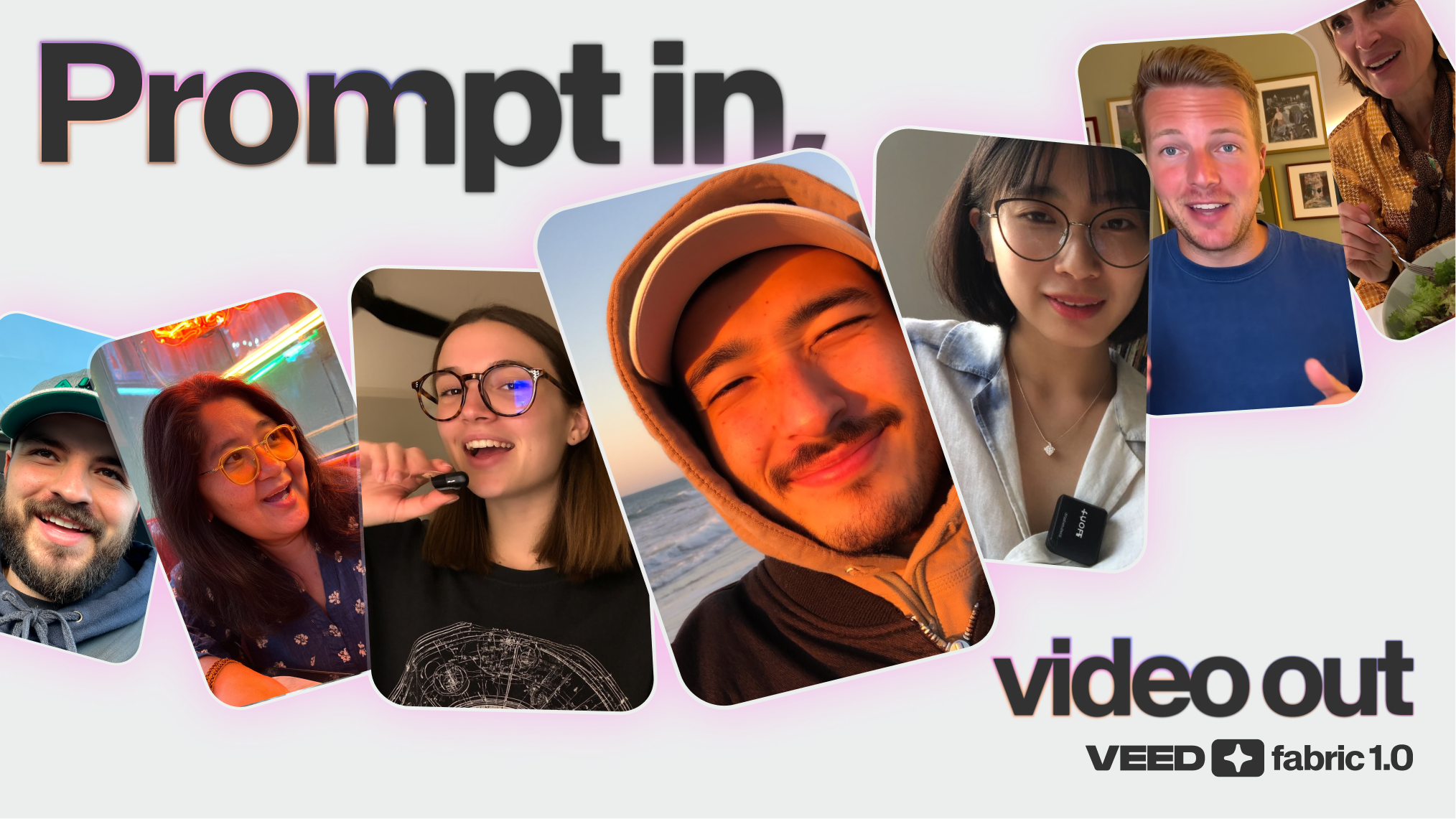
Fabric now also lives inside Gen AI Studio, VEED’s powerful text-to-video environment. You can generate a full talking head video, embed your custom Fabric characters in between, and publish your content with confidence. Every step stays simple. Every frame supports your story.
This guide explains what the new workflow is, why it matters, and how to use it.
.png)
What this launch means
Gen AI Studio is capable of generating a complete video from a single written prompt. Fabric lets you create a talking head video with a script and a picture.
Now, you can do both things and produce ready-to-post videos with one workflow. You get your script, your visuals, your transitions, your b-roll, and your on-screen narrator in one place.
What you can create: a world of creative possibilities
Fabric 1.0 on Gen AI Studio helps you create videos for:
- UGC ads that feel personal, engaging, and direct
- Explainers that need clarity, flow, and smooth transitions
- Product demos that show features, benefits, and real use
- Social videos that feel complete, polished, and on brand
- Internal training videos that sound consistent and stay easy to update
You can move from prompt to polished output faster than ever.
How to use VEED Fabric in Gen AI Studio
Step 1: Launch Gen AI Studio and type in your prompt
Head over to this link to launch Gen AI Studio 👉 https://www.veed.io/home
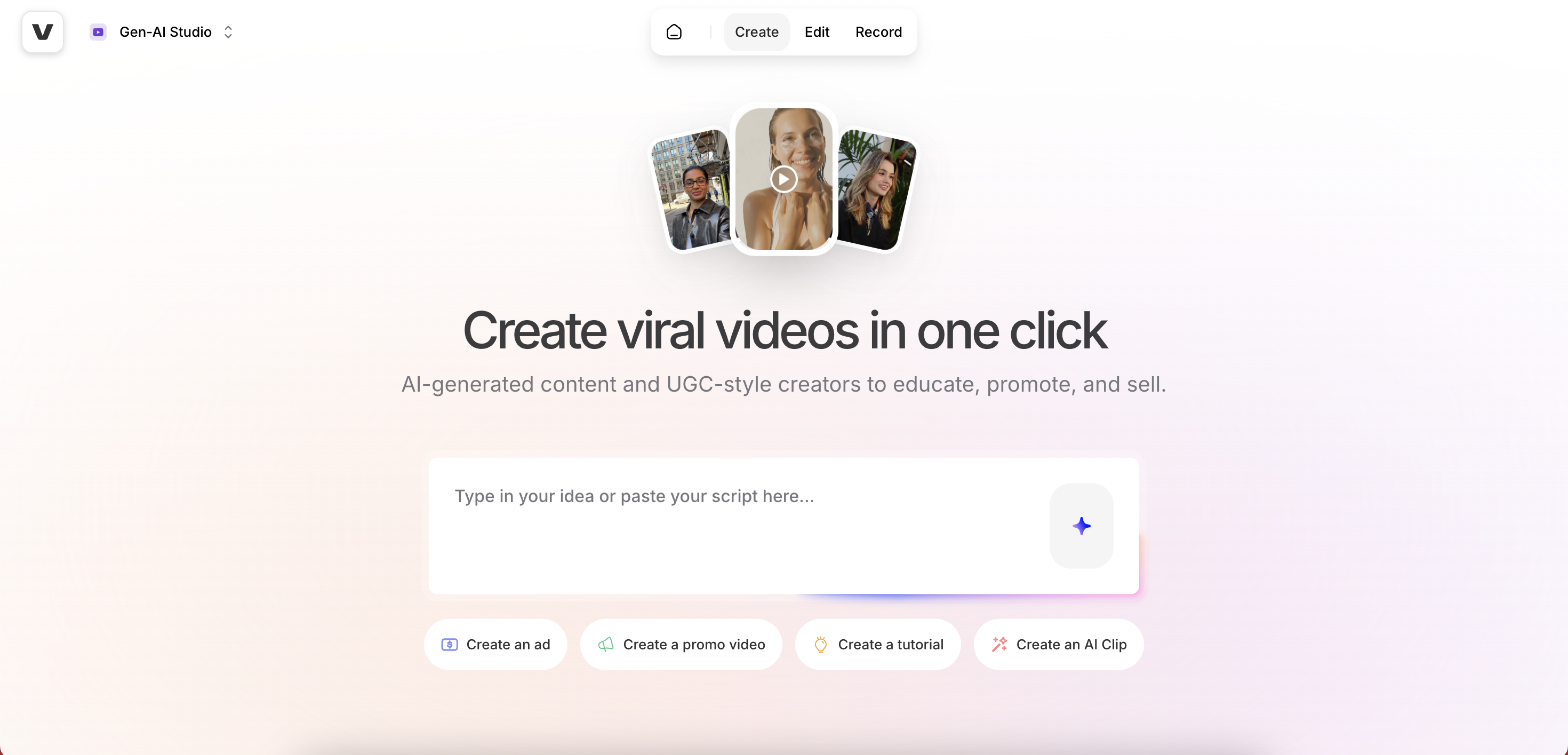
In the prompt box, describe the idea of your talking head video. The more detailed you get here, the closer the final result will be to your vision.
At the minimum, we recommend including this information:
- Make a [duration, e.g., 60-second] [video type: product demo / explainer / ad / podcast clip / thought leadership] for [brand/product/service] targeting [audience/persona].
- Purpose: [e.g., drive signups / build awareness / explain feature / announce offer].
- Story Logic: Example — [Hook → Problem → Value Proposition → Proof → CTA].
- Tone & Personality: [friendly / confident / aspirational / influencer-style / professional].
- Style: [talking head / conversational / testimonial / ad-style].
- Perspective: [first-person / third-person / brand voice].
- Important points to cover: [Opinions/Takes/Information related to the topic you want to highlight]
💡 Interested in learning more?
Check out our complete AI prompts guide for prompt templates, tool recommendations, and more 👉 The Easy AI Video Workflow Guide for Busy Marketers (With Prompt Templates & Tips)
Once you’ve got everything plugged in, click on the blue start button and Gen AI Studio will begin generating your clip.

Step 2: Specify aspect ratio
Once Fabric finishes processing your initial draft, you’ll see the studio environment, with your clip’s scenes listed on the left-hand side. On the right-hand side, you’ll see Settings, with some tools underneath. Before we jump into Fabric, change the aspect ratio of your video to the desired one from the right, if needed.

Step 3: Use Fabric to add characters to your video
Now, let’s turn our generic video into a proper talking head video with Fabric. To get started, click on where it says Character in the right panel. Once you do, Fabric will immediately select and place a preset avatar into the different scenes of your video.
.gif)
You can change this character by clicking on Create character button, which will open the Fabric pop-up. Here, you get 3 options:
- Upload your own character (an image)
- Generate your character
- Select from our library of preset characters
In this tutorial, we’ll use a preset character. Click on the character you like, and then click on Add character. This will immediately replace the existing character with your newly selected one in the video scenes on the left.
.gif)
Step 4: Specify the language and voice in your video
In the right panel, you can change the spoken language in your video. You have 80+ language options.
Next, select a voice for your on-screen Fabric character from the drop-down list. You get a variety of options there as well, and you can also preview the voices by clicking on the blue play button.
.gif)
Step 5: Edit your scenes
Editing the script
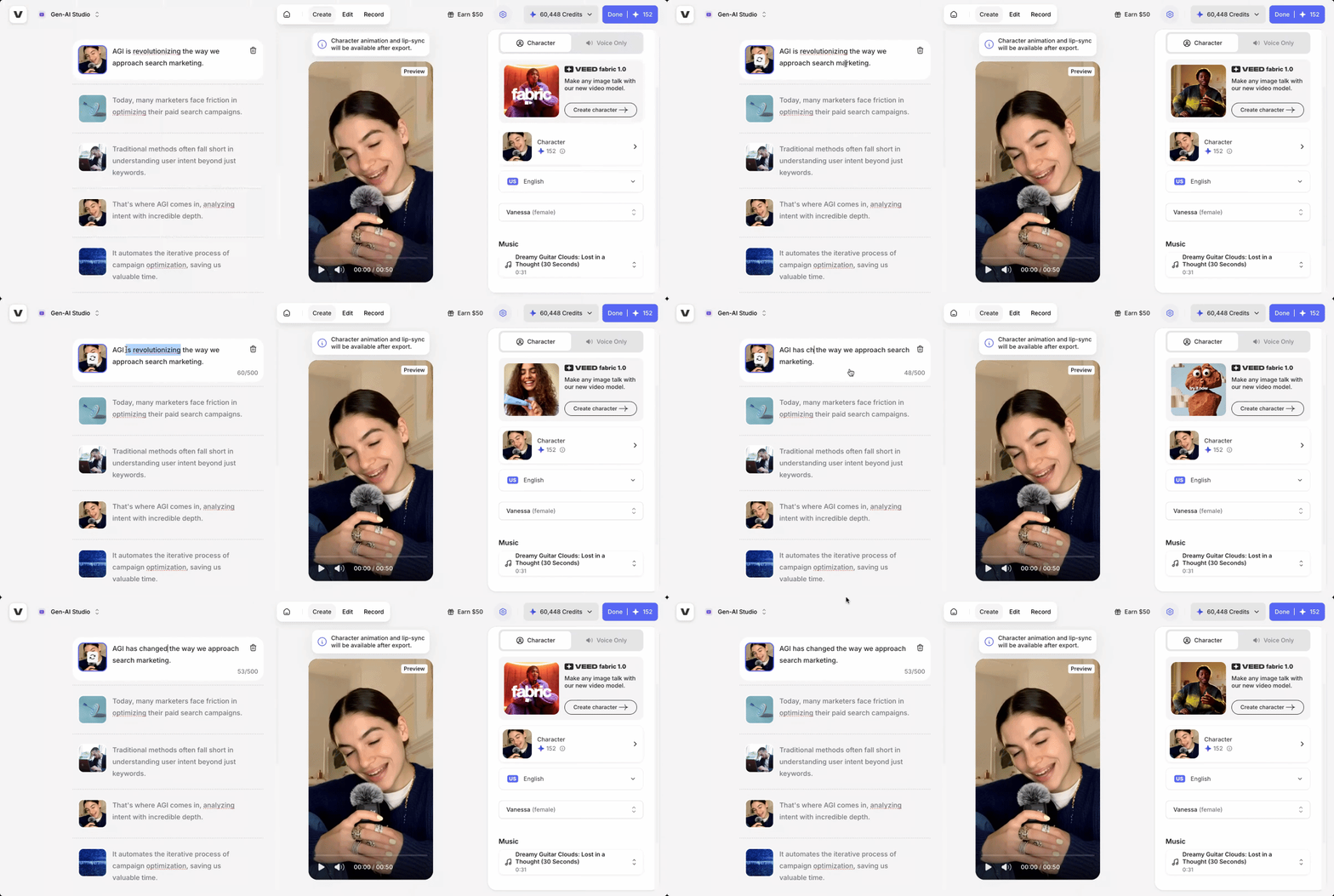
Gen AI Studio lets you get super-granular with how you can edit and refine your AI-generated video. On the left side, you can see your entire video broken down into separate scenes with their transcripts and visuals.
To change what’s said in a specific scene, hover your cursor over it and click. Then simply edit the script like a document. You can add up to 500 characters of script per scene.
Replacing media
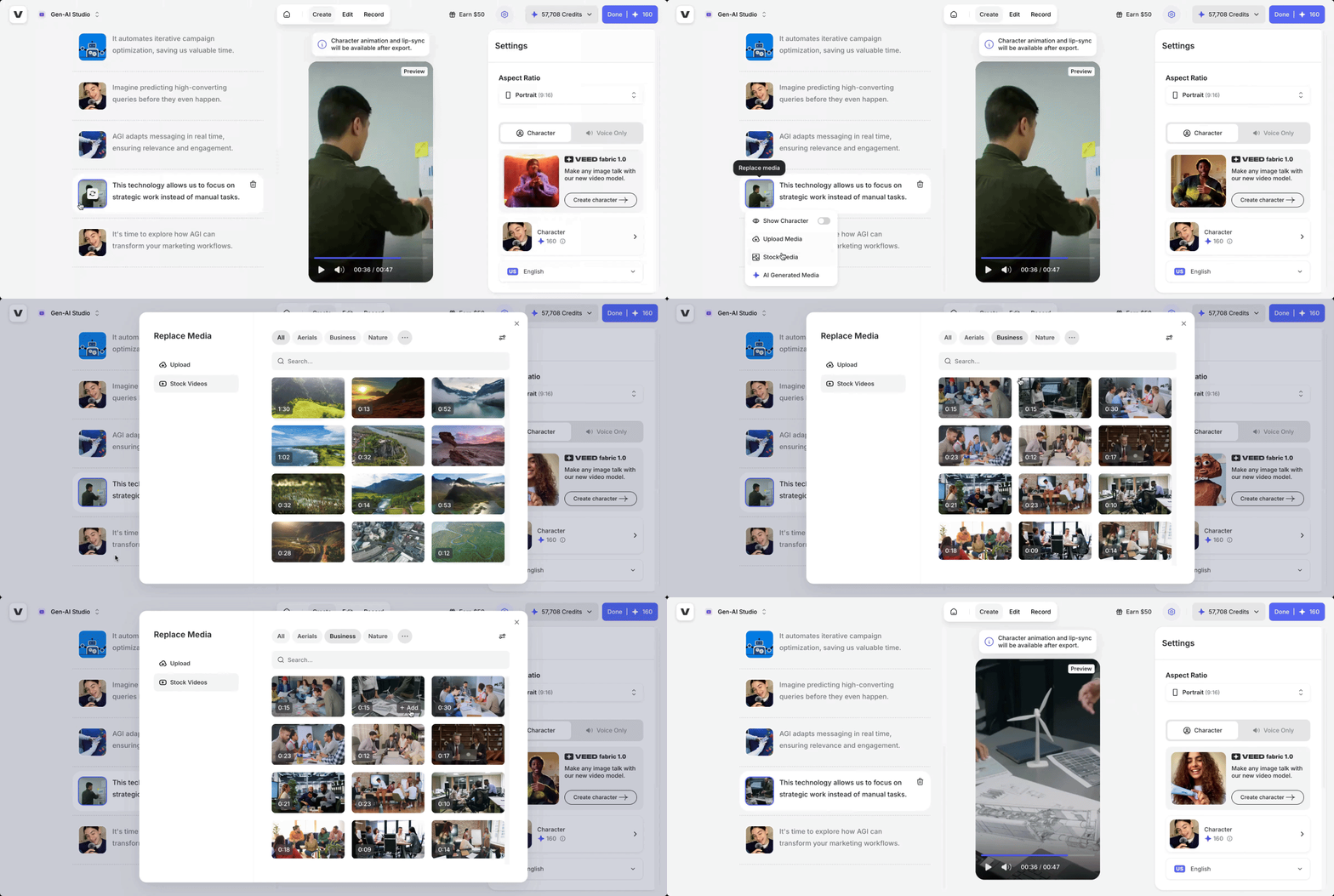
Don’t like the visuals in a scene? Maybe you don’t want that specific stock video, or feel like the character isn’t needed on-screen.
To change the visuals in a scene, hover your cursor over the small thumbnail and click. You’ll see 4 options:
- Show character (this will either be toggled on or off, depending on whether you have your Fabric character in that specific scene or not—choose accordingly)
- Upload Media (if you have your own footage you want to include)
- Stock Media (lets you pick from a large library of free-to-use stock footage)
- AI Generated Media (lets you generate AI B-roll on the spot)
Adding scenes
Think the initial draft missed key points in between? Simply hover your cursor where you want to add your new scene and click on the “+” icon. Then, simply type out your script, and add the desired media (the Fabric character, stock media, or your own footage).
.gif)
Step 6: Add finishing touches, polish, and export
On the right panel, you can pick suitable background music for your video, and also add captions in a variety of styles.
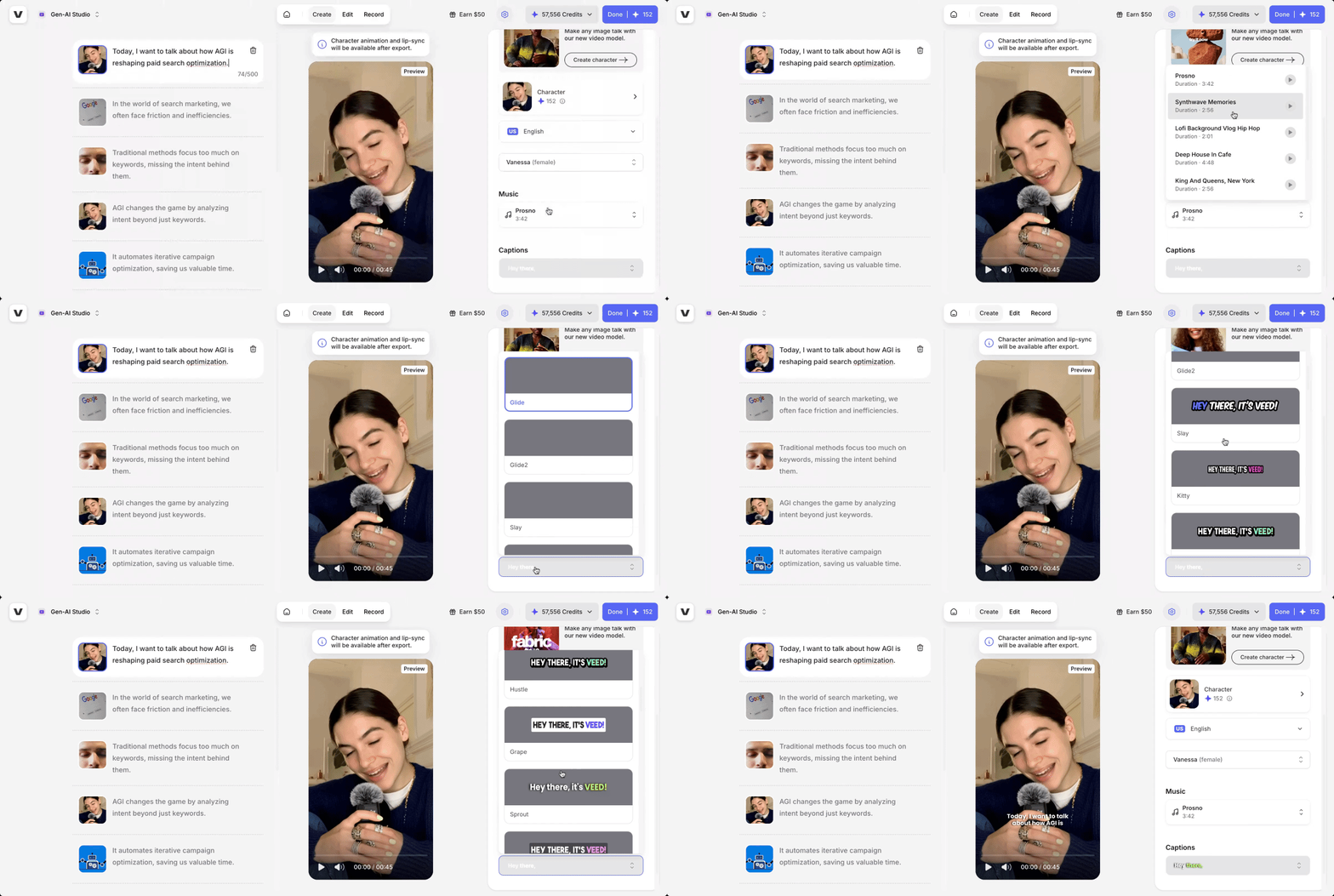
Once all set, click on Done in the top-right corner. Your video will begin to generate. At this point, you can either download it as it is, or further polish it on VEED by clicking on the Edit button.
Key benefits
Create full videos you can post
Your output is no longer a short clip. You get a complete video with scenes, structure, and a clear message.
Add a talking head that matches your brand
Upload a photo and create a consistent on-screen narrator. Your avatar delivers your script with confidence.
Build story-driven sequences
Gen AI Studio generates b-roll, pacing, and transitions that support your message. You get a video that flows.
Keep everything in one tool
You do not need separate tools for narration, visuals, and editing. You work inside one workspace from start to finish.
Make updates in minutes
Change your script, swap b-roll, or update your avatar. You can keep your content fresh without re-recording anything.
Tips for getting the best results
Start with a clear message
State your core idea early in your prompt. Gen AI Studio will build scenes around that message.
Use short, clear instructions
Short inputs create more focused scenes. You stay in control of the story.
Match your avatar to your brand
Choose a photo that represents your voice. Your avatar will carry your message.
Use b-roll as support
Let your avatar speak while b-roll shows the story. This keeps viewers engaged.
Keep your edit simple
Small adjustments often lead to big improvements. Use pacing, cropping, and subtitles to refine your video.
One prompt. Social-ready talking-head videos.
Fabric 1.0 and Gen AI Studio now work together. You can create your video, add your avatar, and publish your story in one smooth flow.
Your next video starts with a single prompt. Your brand shines through every scene. Your message arrives with clarity and confidence.
.jpg)
.png)