Social Media Managers juggle deadlines, shifting trends, and endless format requests. One video can spark ideas for ten posts, yet converting that footage often takes more time than creating it.
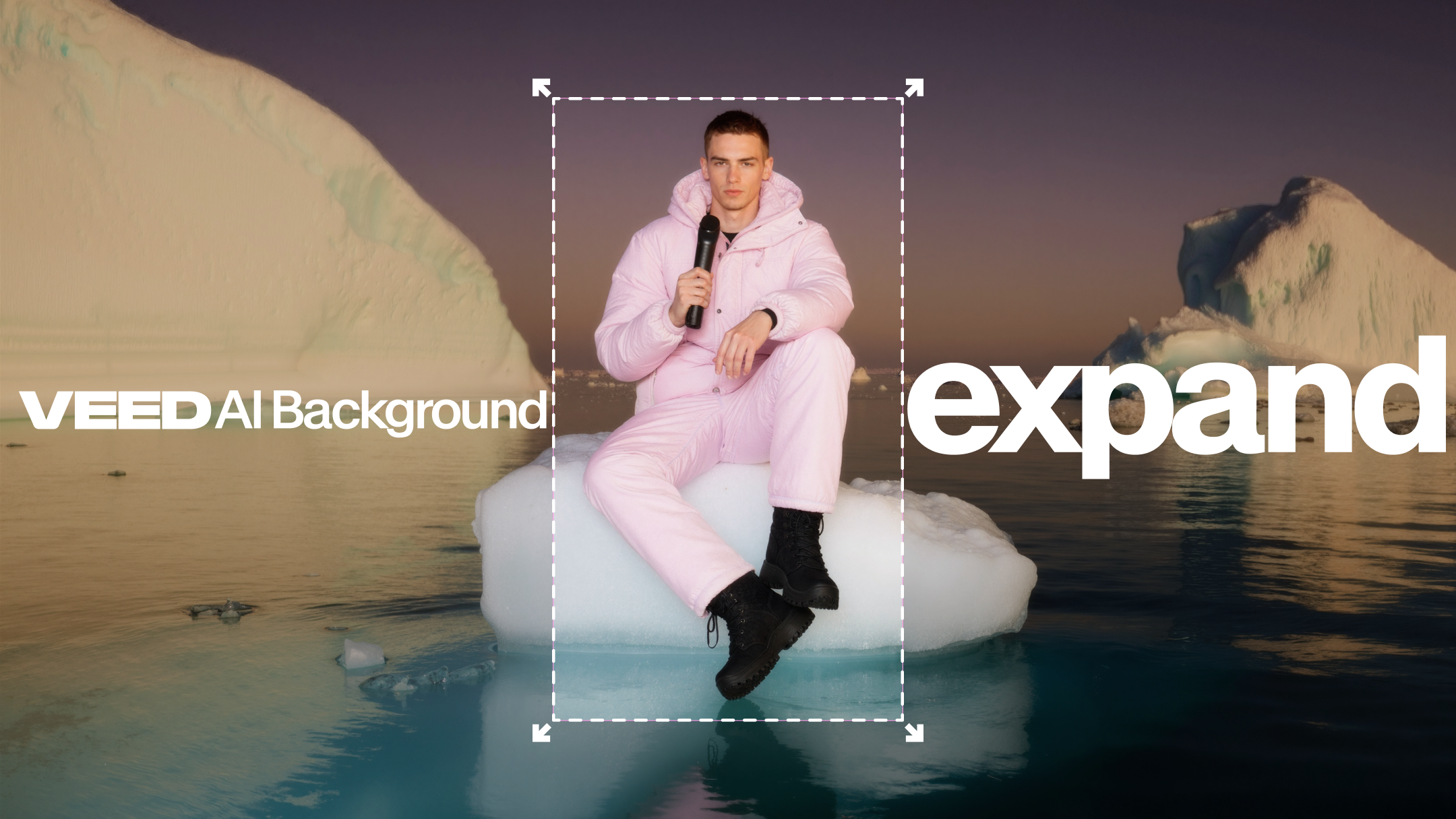
AI Background Expand cuts through that friction. Your original shot becomes a flexible asset that adapts to any platform. Everything stays sharp, on brand, and ready to publish.

What is AI Background Expand
AI Background Expand is a tool that turns a single video into clean, platform-ready versions for every channel. The system uses AI outpainting to extend your background, adjust framing, and prepare new aspect ratios without manual edits. You stay focused on the story while the tool handles the technical lift.
In simple words, it’s capable of turning your video from landscape to vertical, square to vertical, or vertical to landscape, automatically.
Best in class 🏆
Most alternative tools only work on clips that are ~10-seconds long. VEED's AI Background Expand supports videos that are up to 1 minute in length!
At a glance, it provides:
- Full frame expansion that avoids black bars or awkward crops.
- A workflow made for marketers who want polished assets fast.
- Smart background outpainting that fills the frame without complex steps.
Built for every team
AI Background Expand helps teams build more from each shoot and publish with confidence.
- Marketing: Produce versions of testimonials, demos, and announcements in the right ratios for every channel with almost no extra effort.
- Social Media: Convert widescreen content into vertical or square formats for TikTok, YouTube Shorts, Reels, and LinkedIn while keeping a clean frame.
- Creative: Capture once and repurpose everywhere. Create new versions for any platform without reshoots or extra editing sessions.
How to use AI Background Expand?
To get started, fire up a new project on VEED (click here). Next, upload the video you wish to repurpose.
Next, click on your video in the timeline to bring up the Edit Video tab in the left-hand panel, like so:
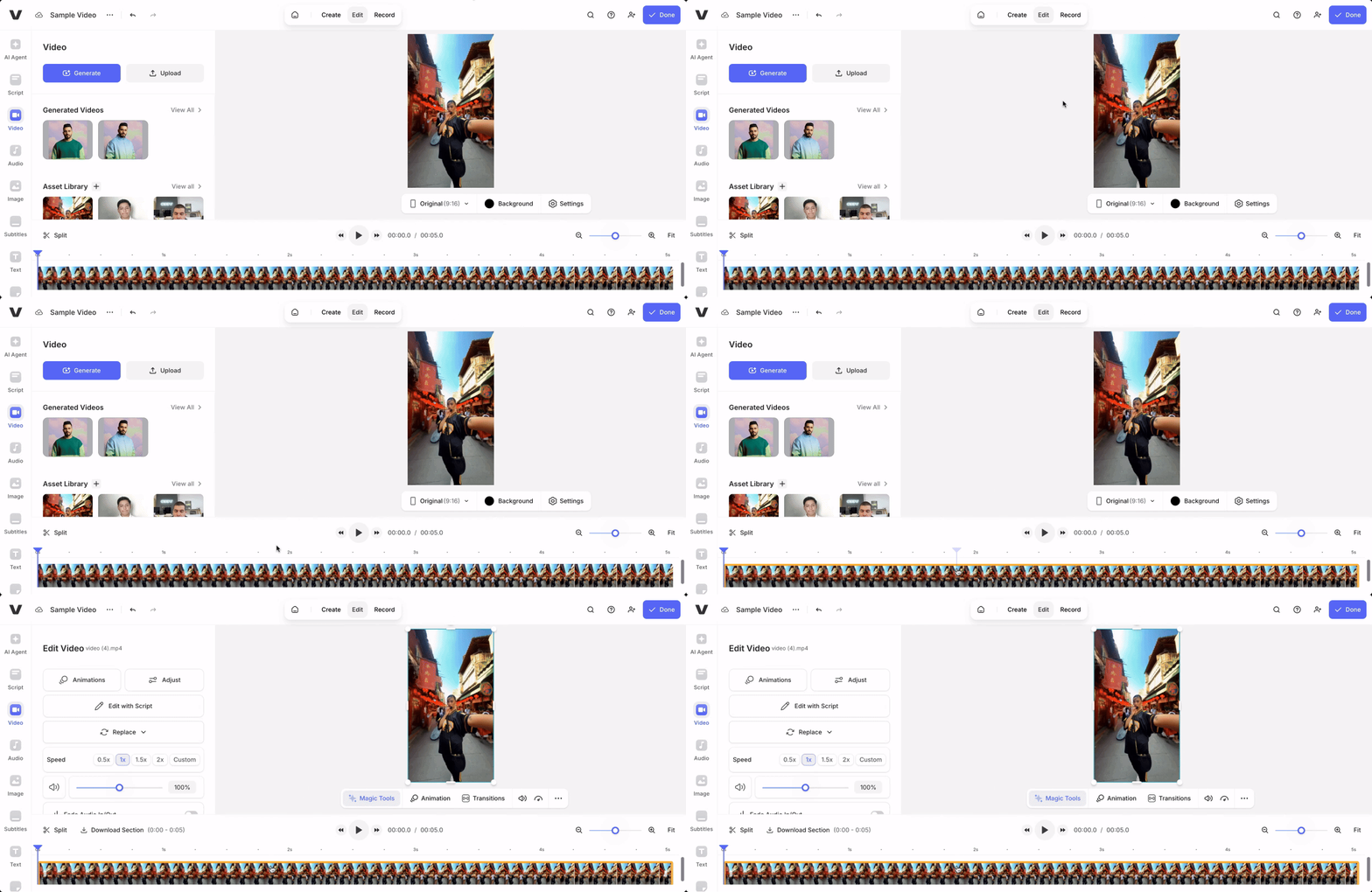
Then, follow these steps:
Step 1: Bring your cursor towards the left-hand panel and scroll down to where it says AI Background Expand. Click on it, and a window will pop up, as shown below:
.gif)
Step 2: In the window pop-up, click on Use AI Background Expand. Then just wait for a couple of moments, as AI automatically expands the background of your video.
.gif)
Step 3: Once done, polish your repurposed clip to your liking, and export away.
Here’s the final result of our sample 9:16 clip after we ran it through AI Background Expand:
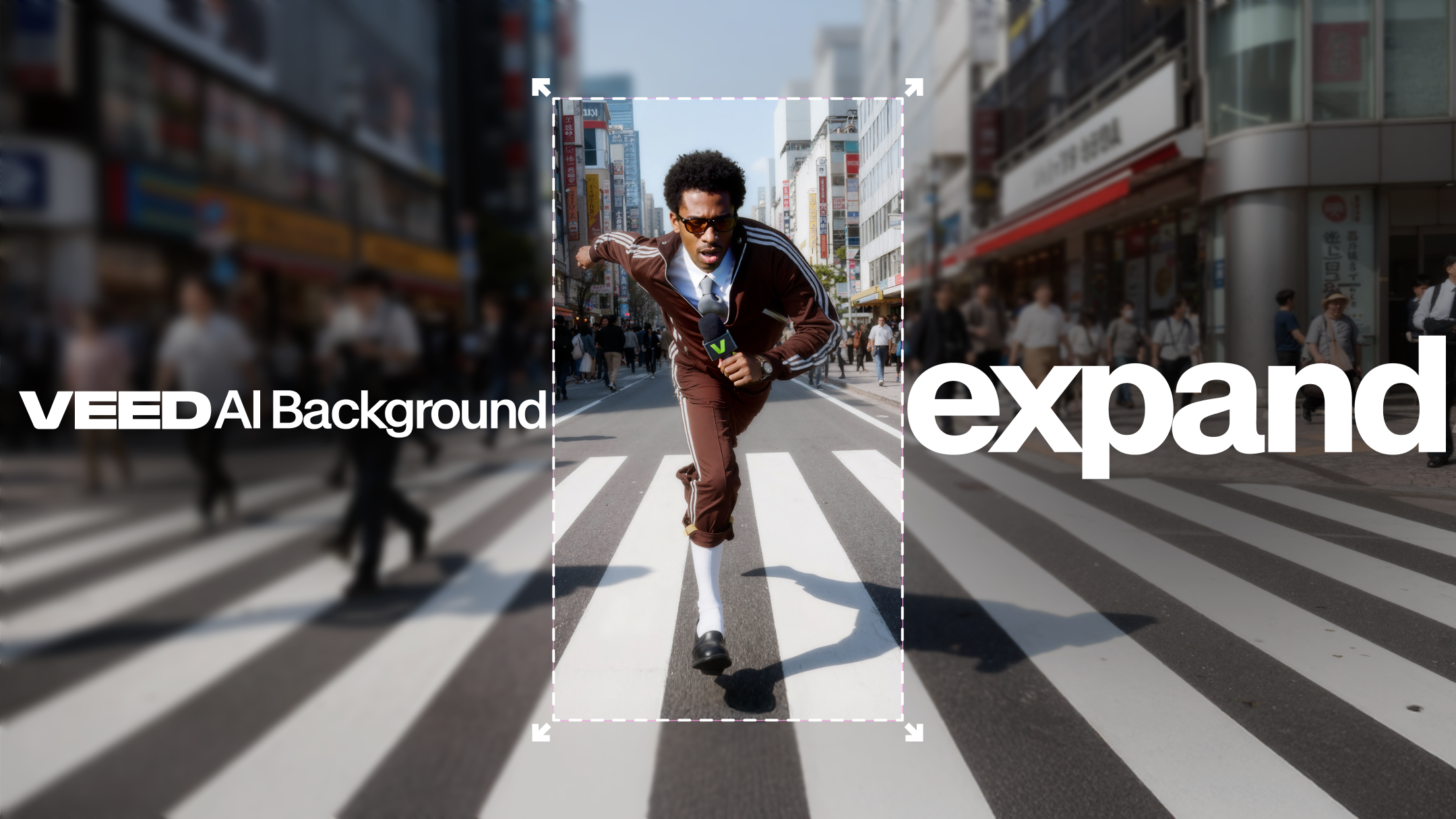
In the same way, you can also take a widescreen (16:9) video and make it into the portrait aspect ratio (9:16). The tool is capable of cleanly cropping the sides, centering key subject(s), and expanding the areas up top and bottom with AI magic.
More than just resizing. Try it now.
AI Background Expand helps teams scale their video output with less effort and more consistency. You unlock new reach while keeping every asset aligned with your brand. Start transforming your existing footage into ready to post formats today.
.jpg)
.png)