
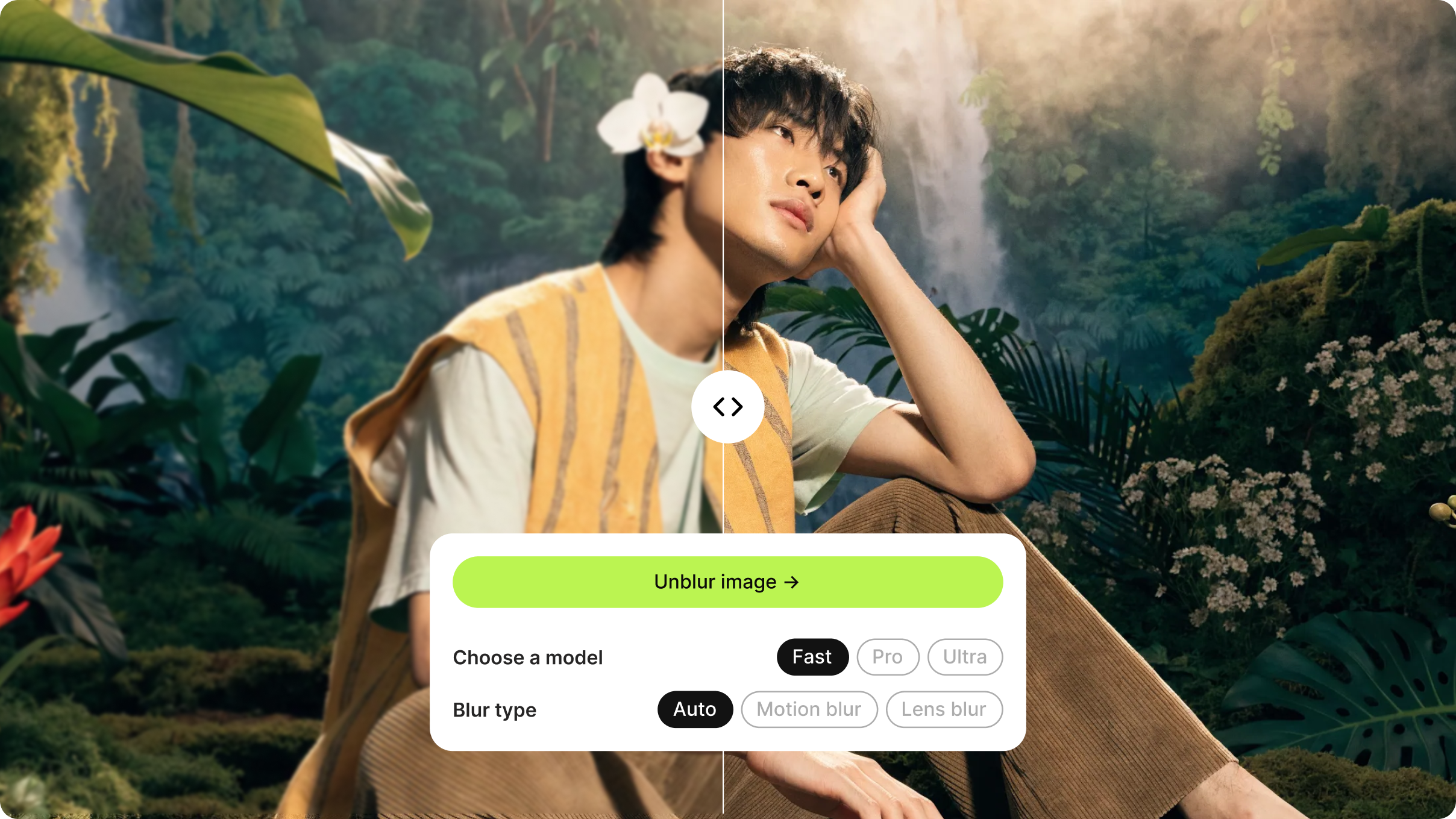
VEED launched Unblur Image, a free-to-try browser tool that takes a blurry photo and returns a sharp one, with a before-and-after slider so you can judge the result. Unblur Image is built for anyone with a shot they can't retake: the product photo for a listing, the team picture, the event shot that came out soft because the camera focused on the wall behind it. It handles both motion blur from a shaky hand or a moving subject and lens blur from a missed focus.
At a glance
- What: Unblur Image, a new tool in VEED
- Does: Sharpens a blurry photo and shows the before and after side by side
- For: Anyone with a soft or shaky photo they can't retake, from product shots to family pictures
- Available: October 16, 2026, with a VEED account; no credit card required
- Where: Unblur Image
- Formats: JPG, PNG, and WEBP uploads
What does Unblur Image do?
Unblur Image takes a blurry photo, works out what kind of blur it has, and rebuilds the sharp edges and detail the blur hid. You drop a photo into the uploader, press the unblur button, and get the result back next to the original. From there you can:
- Let the tool detect the blur type with Auto, or pick Motion Blur for camera shake and moving subjects, or Lens Blur for shots that are out of focus
- Choose a model: Fast for a quick fix on a lightly blurred snapshot, Pro for photos you plan to post, and Ultra for the hardest images and anything you will print
- Drag the before-and-after slider to compare the result with the original before you download
- Run the same photo through another model or blur type and keep the best version
- Open the result in AI Image Editor to remove objects or swap the background, or turn it into a short video
Unblur Image accepts JPG, PNG, and WEBP files. Mild to moderate blur usually comes out clear; heavily blurred photos improve, but the tool can't recover detail that was never captured.
How to use Unblur Image
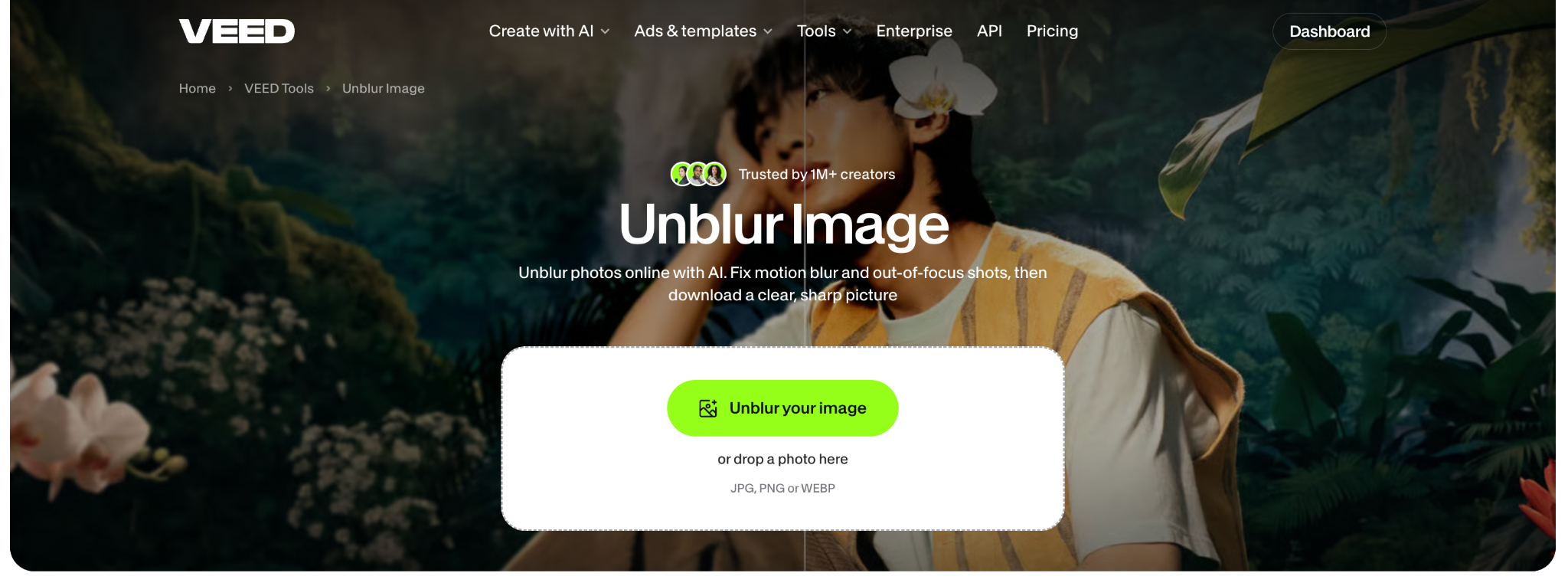
- Open Unblur Image and drop in your photo. Camera roll shots, screenshots, and scans all work.
- Pick a model (Fast, Pro, or Ultra) and a blur type (Auto, Motion Blur, or Lens Blur), then press the unblur button. If you're not sure what caused the blur, start with Auto.
- Check the before and after, then download the clear image or carry on editing.
Why we built it
Some photos only happen once, and a lot of them come out blurry. The usual fix is a sharpen filter, which boosts edge contrast and leaves halos, or a retouch in software most people don't have time to learn. We built Unblur Image so the photo you thought you'd lost can go up on Instagram, into a Shopify listing, or to print, after one upload and one click.
Availability
Unblur Image is available today on the Unblur Image page to anyone with a VEED account, with no credit card required. Each unblur uses AI credits. Current plans and credit options are on the pricing page. Image Upscaler, built on the same micro-app, is available now for photos that are small or pixelated rather than blurry.
.png)