Kling 3.0 Prompting Guide: Get Better Videos in 5 Steps

Quick Takeaways
- Kling 3.0 is an AI video generator that produces up to 10-second clips with exceptional motion realism, advanced physics simulation, and multi-shot prompting capabilities.
- The Kling AI prompt creation guide uses a 5-part structure: subject details, motion specifications, camera work, environment description, and style/lighting for cinematic results.
- The Kling AI motion control prompt guide includes techniques such as motion intensity settings, multi-shot sequencing, and negative prompts to eliminate artifacts.
Kling AI prompt engineering guide mastery is critical because this model interprets detailed motion instructions with exceptional accuracy. Vague prompts produce generic movement and inconsistent physics, while structured prompts unlock Kling 3.0's advanced motion capabilities. This Kling AI video prompt guide shows you how to control motion intensity, use multi-shot prompting for complex sequences, and troubleshoot common generation issues.
What you'll learn: The 5-element prompt structure, motion control parameters, multi-shot prompting techniques for extended sequences, and proven prompt examples.
Understanding Kling 3.0's strengths
What Kling AI video generator excels at:

Realistic physics simulation: Handles complex physics like liquid dynamics, fabric movement, and collision interactions with exceptional accuracy. Water splashes realistically, clothing drapes authentically with gravity and wind.
Motion intensity control: Offers precise control over movement speed and energy through motion parameter settings. You can specify exact motion levels from subtle (0.3) to dramatic (1.0).
Multi-shot prompting: Creates extended sequences by chaining multiple shots with different camera angles and perspectives while maintaining visual continuity.
What to avoid:
- Extreme facial close-ups during rapid motion often produce distortion around the eyes and mouth
- Multiple subjects with independent complex actions can cause tracking issues and identity confusion
Quick tip: Kling 3.0's motion control settings are its superpower. Always specify motion intensity values (0.1 to 1.0) for predictable results rather than relying on default settings.
Core Kling 3.0 prompting framework
The 5-part prompt structure
Kling AI prompt creation guide template
[Subject details], [Motion specifications with intensity value], [Camera work], [Environment], [Style/Lighting]
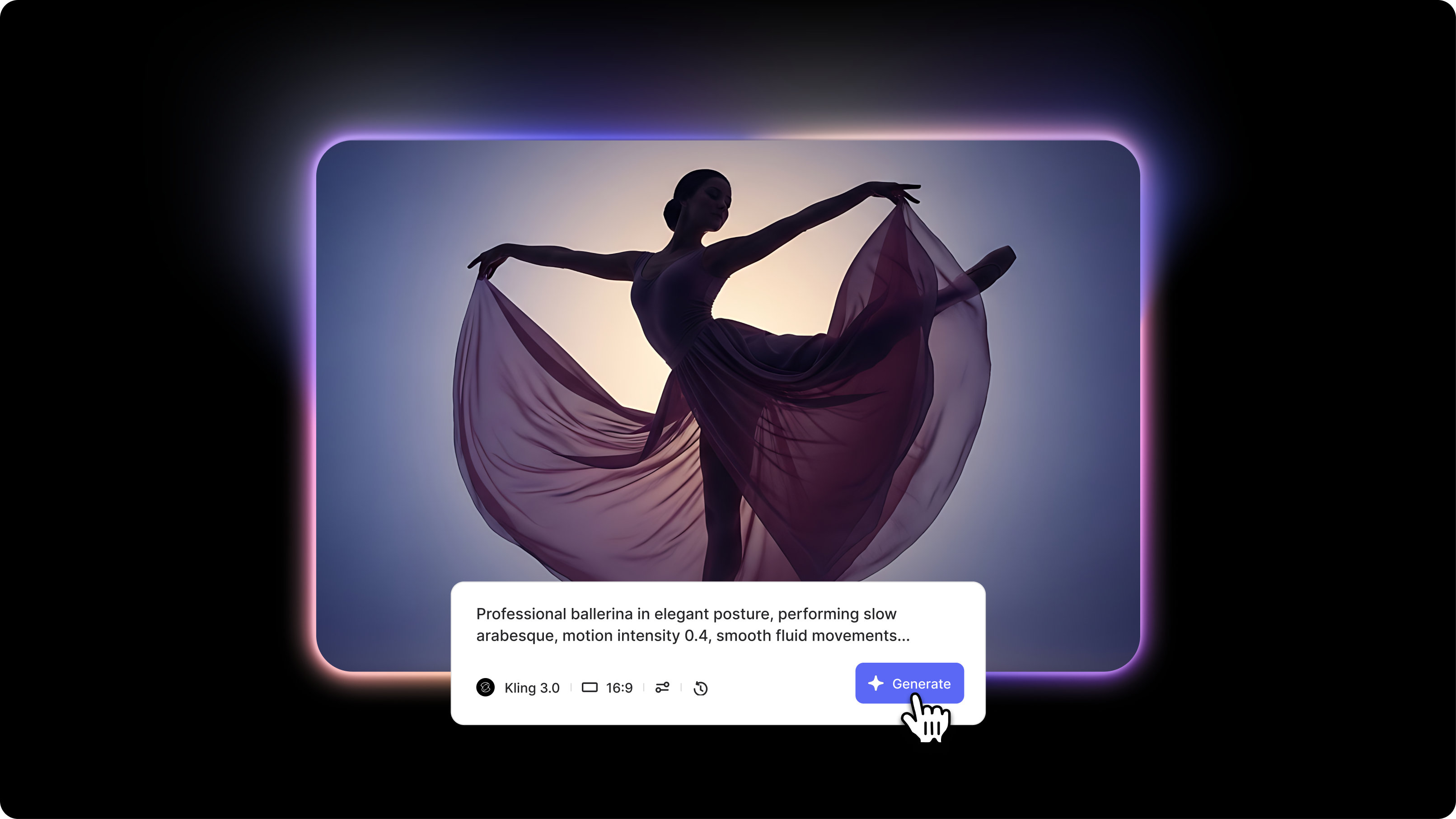
Kling AI video prompt guide example: "Professional ballerina in white tutu and pointe shoes, graceful elegant posture, performing slow arabesque with controlled leg extension, motion intensity 0.4, smooth fluid movements, static medium shot from front at eye level, minimalist dance studio with wooden floor and mirrored wall, soft diffused natural lighting creating gentle shadows, artistic dance photography style with muted pastel tones"
Advanced Kling 3.0 prompting techniques
Motion intensity control
Sets precise movement energy levels using numerical values for predictable results.
When to use: Every prompt to control exactly how dynamic or subtle movements should be.
Motion intensity scale:
- 0.1-0.3: Subtle, minimal motion (breathing, slight sway)
- 0.4-0.6: Natural, moderate motion (walking, gestures)
- 0.7-1.0: Dynamic, energetic motion (running, jumping, dancing)
Example: "Character walks slowly through garden, motion intensity 0.5, relaxed natural pace"
Multi-shot prompting
Creates extended sequences by connecting multiple shots with different perspectives while maintaining subject consistency.
When to use: Building complex narratives that require multiple camera angles or longer duration than single 10-second clips.
Kling 3.0 elements multi-shot example:
- Shot 1: "Wide establishing shot, dancer enters stage from left, motion intensity 0.6."
- Shot 2: "Medium shot from front, same dancer performing spin, motion intensity 0.7, matching costume and hairstyle."
- Shot 3: "Close-up of dancer's face, expressing joy at performance end, motion intensity 0..3"
Negative prompt strategy
Eliminates common artifacts and unwanted visual elements specific to Kling AI.
When to use: To prevent motion blur, morphing, distortion, or physics errors.
Example negative prompt: "Negative: motion blur, face distortion, warping, morphing, inconsistent physics, floating objects, unnatural movements, extra limbs, background shifting"
Common mistakes and fixes
Getting started with Kling 3.0
The Kling AI motion control prompt guide emphasizes precise motion intensity values and structured multi-shot sequencing. Use the 5-part framework with explicit motion parameters, leverage multi-shot prompting for extended narratives, and always specify motion intensity values. Start with simple single-action prompts at moderate motion intensity (0.5) before attempting complex multi-shot sequences.
Try Kling 3.0 alongside other leading AI video generators in VEED's AI Playground, where you can compare outputs and integrate results directly into your video editing workflow.