What if there was a solution that allowed you to easily create voiceovers for your videos forever — and all you had to do was record your voice only once?
Annoying background noise, cracks in our voice, and misreading the script are all now things of the past, thanks to a new tool that has changed how we record voiceovers.
Enter VEED’s AI Voice Cloning. This AI-powered tool creates a natural-sounding digital copy of your voice, which you can use to generate voiceovers by simply typing out what you want to say.
Sounds too good to be true? Read on, as we explore:
- What AI Voice Cloning is
- How to Use AI Voice Cloning on VEED
- Types of Videos Where You Can Use Voice Cloning
[#TOC1]What is Voice Cloning?[#TOC1]
Voice Cloning by VEED AI is a tool that lets you create a realistic digital copy of your voice. Once generated, you can create lifelike and engaging video narrations in your own voice by simply providing the tool with a script. All you need to do is to provide a sample of your voice through an initial recording of yourself reading a short script, and you’re good to go.
With your cloned voice, you can create voiceovers at scale without having to record them on your microphone, giving you more time to focus on other fun parts of your video creation process.
[#TOC2]How to Use AI Voice Cloning on VEED?[#TOC2]
Step 1: Sign Up, Log In, and Create a New Project
If you already haven’t, sign up and log in to your VEED account. Once done, you’ll be redirected to your VEED workspace.
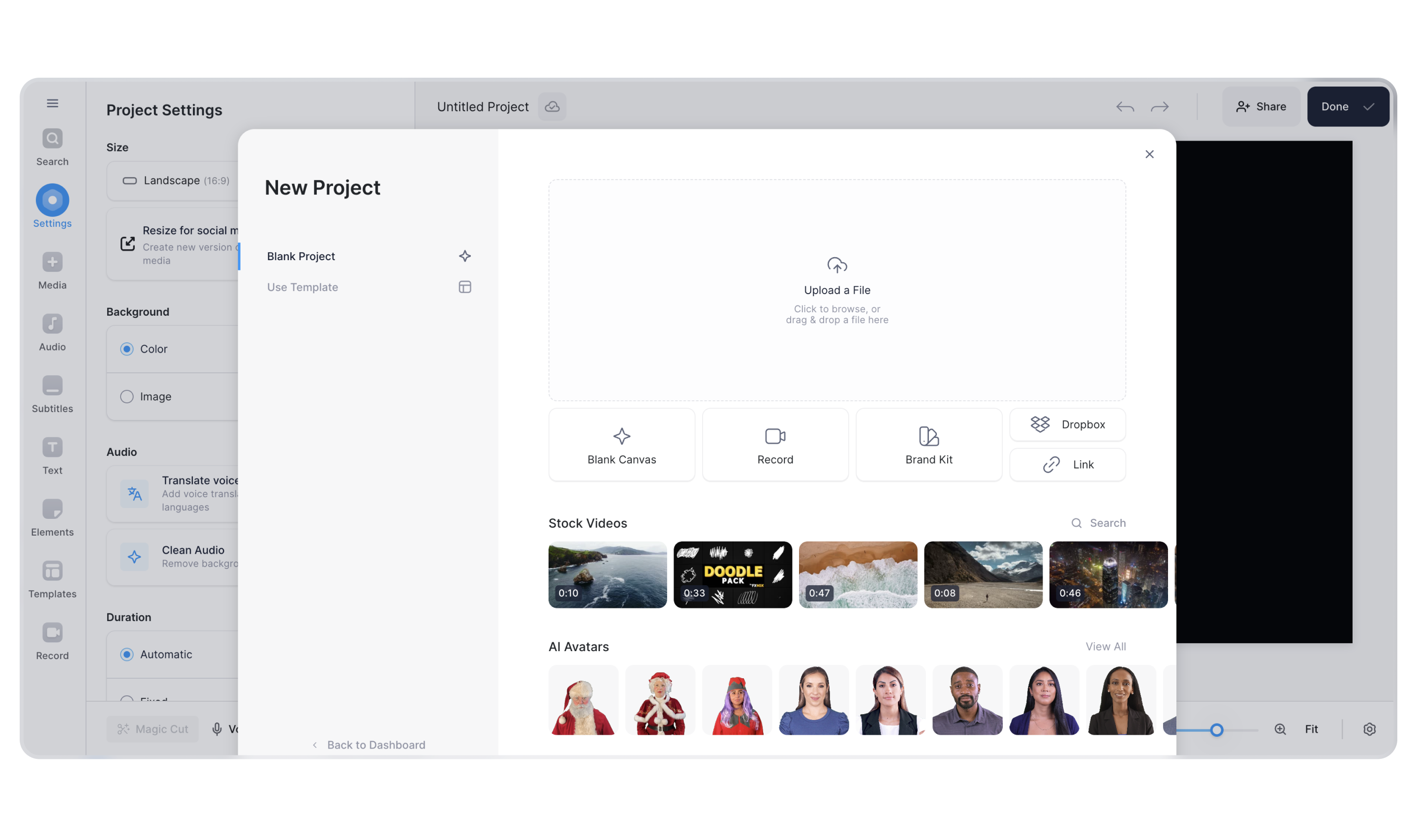
Next, click on Create Project. At this point, you can either:
- Upload an existing video on your device
- Record a video directly on VEED
- Import from your Dropbox account
- Import via link
- Start a blank project
- Use a stock video
Step 2: Open the Text-to-Speech Tool
Once your project is locked and loaded, click on Search in the top-left corner and type in “text to speech.” Once the option shows up on the list, click on it. This will open the Add audio tab on the editor, with the TTS tool selected.
Step 3: Clone Your Voice
To create a clone of your voice, simply:
- Click on Voice Clone (next to where it says Text to Speech).
- Click on the Add new button under where it says Voice.
- A pop up will open up. Click on Get Started.
- In order to clone your voice, VEED will ask you to record a very short predetermined script. The purpose of this step is to prevent users from cloning someone else’ voice without their consent. Click on the red Record button and start reading the script out loud, and once done, click on Stop.
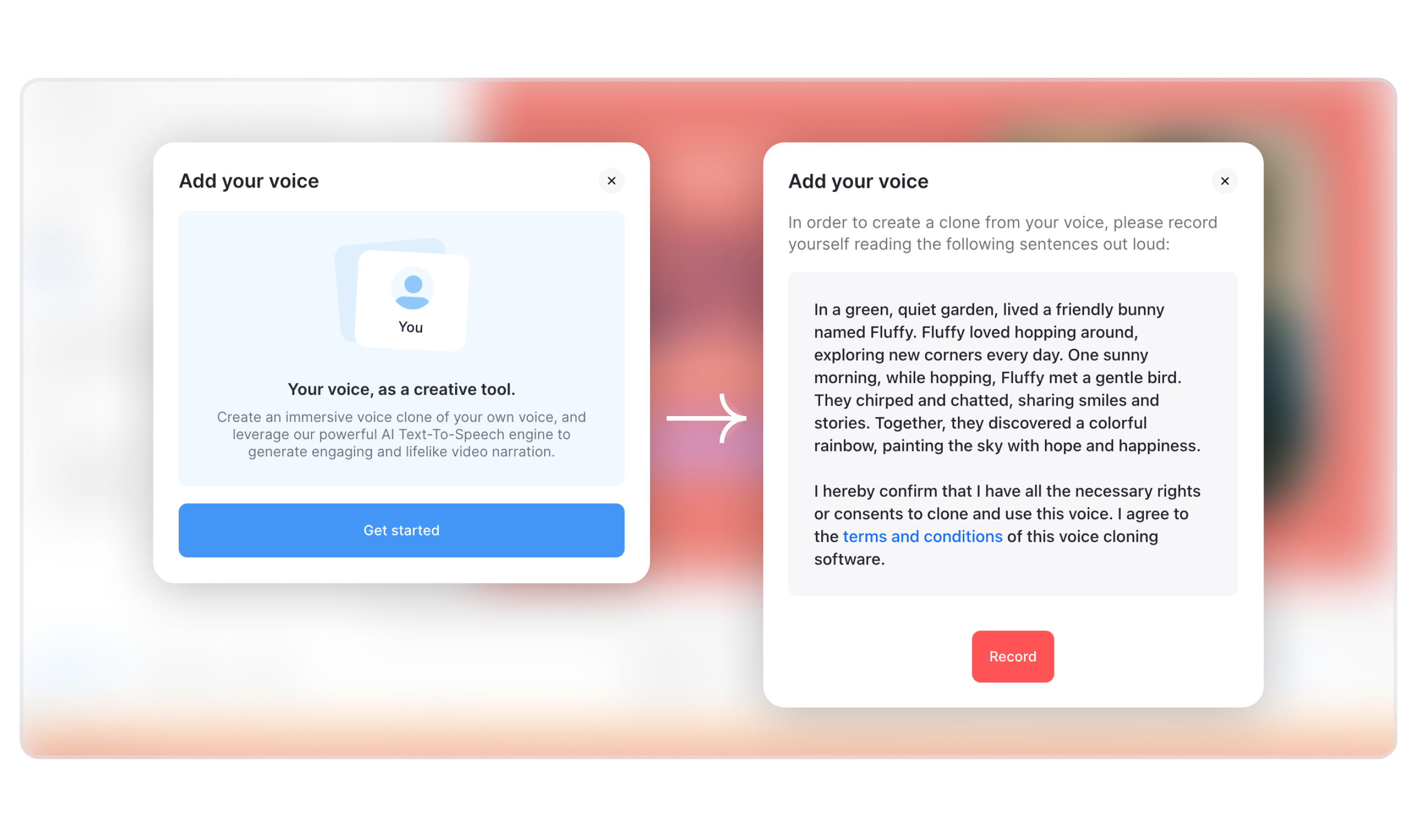
Next, you may listen to your recording and do a retake if you’d like. If you’re satisfied, click on Continue.
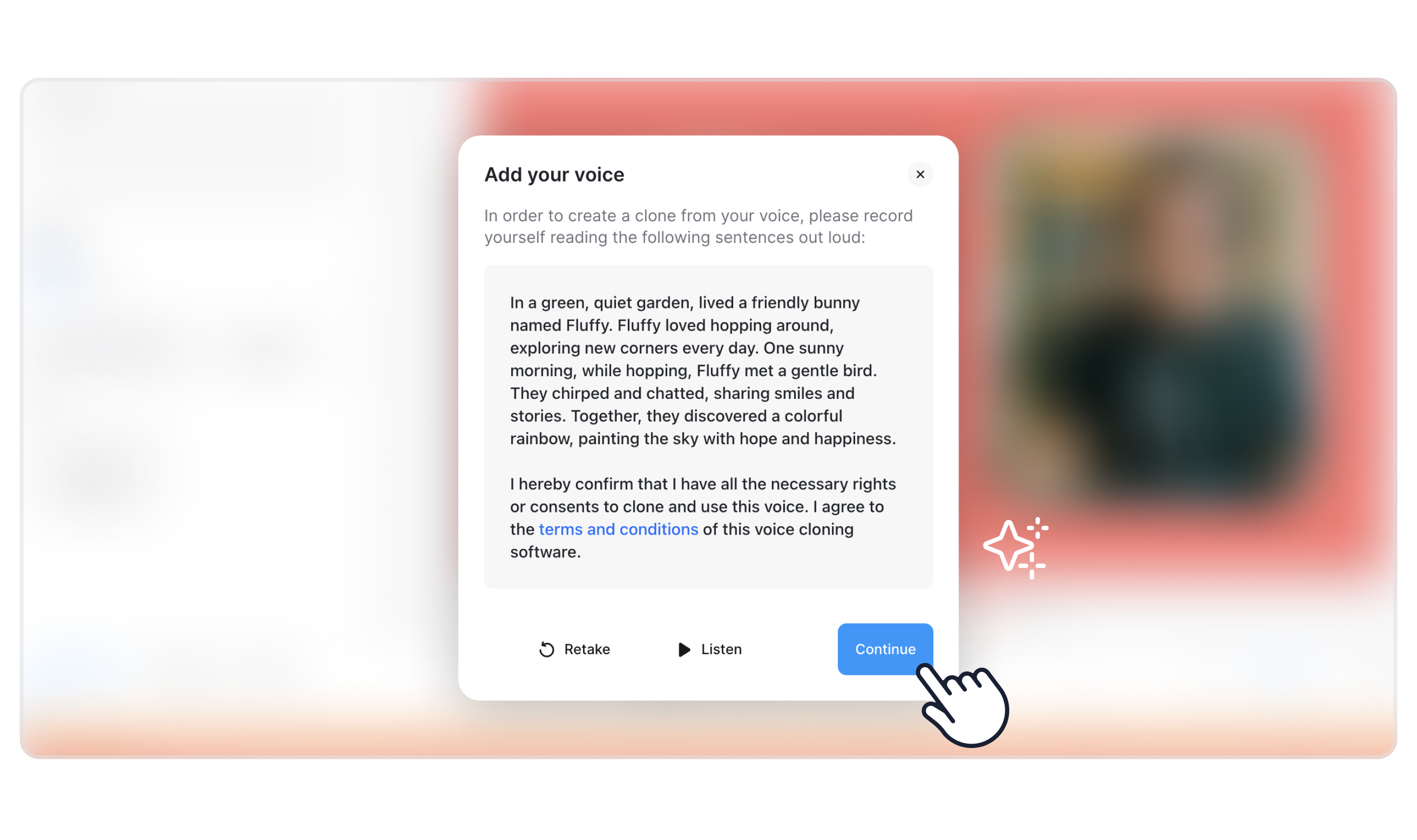
Once done, your cloned voice will start showing up in the Text to Speech tab, under where it says Voice.
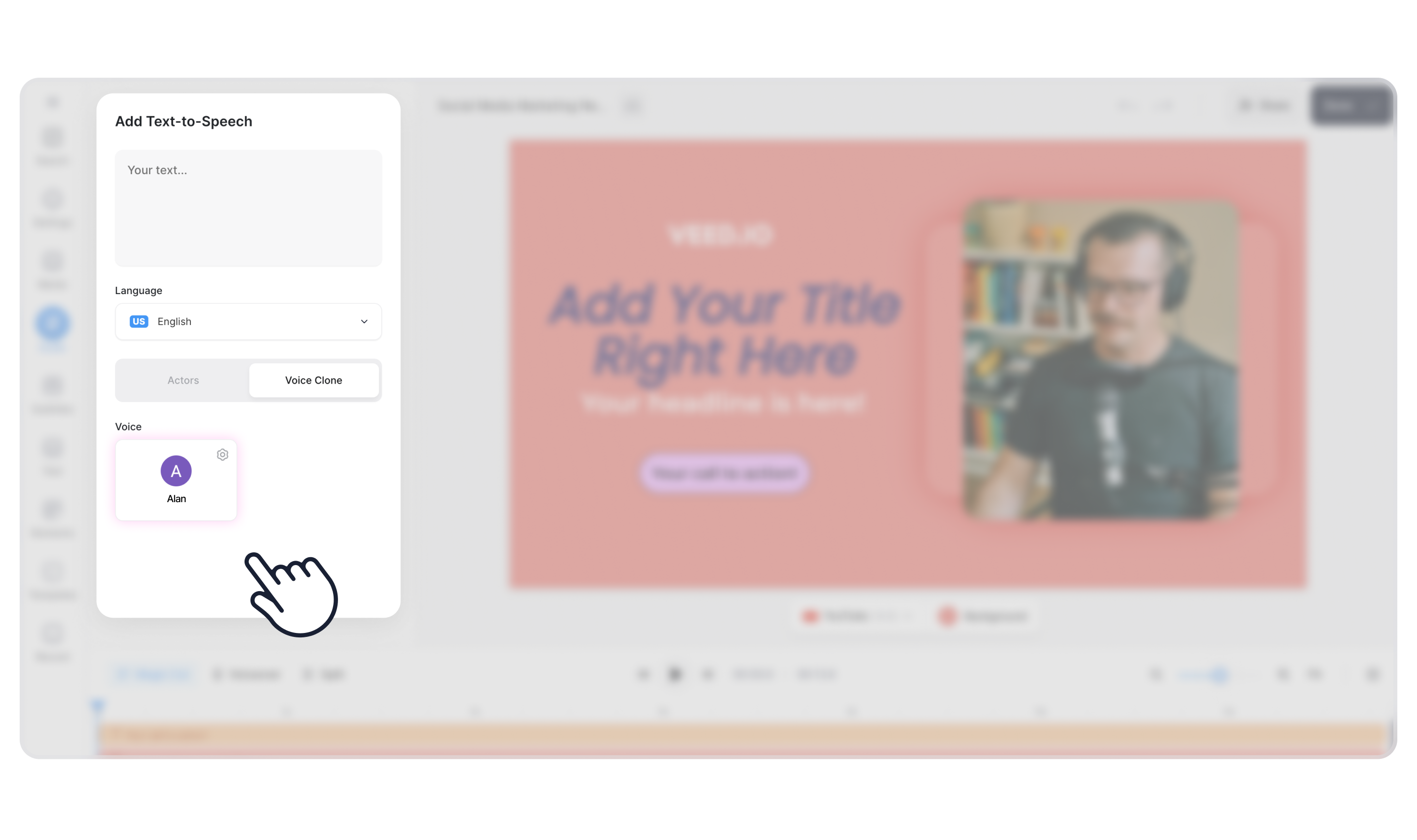
Step 4: Start Creating Voiceovers with Your Cloned Voice
With your AI voice clone generated, you can start creating video narrations right away. Simply type out what you want to say at the top field, and click on Generate. The AI generated voiceover will show up on the timeline, which you can easily adjust with your video.
[#TOC3]5 Types of Videos Where an AI Cloned Voice Really Shines[#TOC3]
While you can use your cloned voice for pretty much any project, here are 5 types of videos where it would shine the most.
1. Educational Videos
With AI voice cloning, you can ensure consistent voiceovers throughout your educational content, be it academic material or training videos. The realistic narrations generated in your own voice — which your viewers may already recognize and relate to — can help improve knowledge retention. All of this, while allowing you to create your content at a much faster pace and at a reduced cost, as you won’t need to re-record your narrations because of mistakes.
Must-Try VEED Features for Educational Videos:
- Automatic Subtitles: generate subtitles for your video in one-click.
- Stock Assets Library: search through thousands of stock music, sound effects, and videos to improve your videos.
2. Product or Service Demos
The goal of any demo video is to keep your potential customers engaged till the very end, as you walk them through the different features and benefits of your product. Narrations generated with a standard robot-like AI voice will make your audience lose interest halfway into the video. With a realistic clone of your own voice, however, your explanations will become crystal clear and engaging, keeping your audience captivated and informed. All of this can lead to improved interest and higher sales.
Must-Try VEED Features for Product or Service Demos
- Screen Recording: conveniently record and then edit the product/service demos within our editor.
- Automatic Subtitles: make your demos more accessible and easy-to-follow for your potential customers by adding subtitles.
- Video Hosting: host your demo videos on VEED and easily share them with your potential customers via links.
3. Promotional Videos
People buy from people. Whether you’re selling your own product or vouching for another business, your audience will be more receptive if they hear from a familiar and realistic-sounding voice. Thanks to AI voice cloning, you can create narrations for your promotional videos without going through the trouble of actually recording them.
Other Must-Try VEED Features for Promotional Videos
- Templates and Presets: VEED offers a large collection of ready-to-use templates and presets designed for various social channels, so you don’t have to create every video from scratch.
- Stock Music: choose music from our stock library to set an engaging tone and pace for your video.
4. How-To Guides
Consistent step-by-step guidance is the key to winning with how-to guides and tutorials. One of the ways to achieve this consistency — with very little effort — is using AI voice cloning to create lifelike narrations for your how-to videos. In addition, it's cost-effective, allowing you to create more videos without necessarily hiring a voiceover artist or doing it yourself.
Must-Try VEED Features for How-To Guides
- Screen Recording: VEED’s built-in screen recording functions make it extremely easy to not just record yourself, but also your screen — perfect for how-to guides.
- Stickers: add engaging on-screen stickers, such as arrows, to highlight something on-screen and better drive your points home.
5. Customer Comms and Company Announcements
With AI voice cloning you can easily maintain a consistent voice across your customer comms and company announcements, minus the trouble of recording everything yourself. Furthermore, the hyper-realistic AI voice also adds a personal touch to your videos, whether it’s a heartfelt thank you for a long-time customer or an important company-wide update.
Must-Try VEED Features for How-To Guides
- Add Media: upload photos and additional videos to provide more context and give your message a personal touch.
- Audio Translator: create video messages for international customers and employees in their native languages by translating your audio with AI.
Clone a Voice Once, Generate Realistic Voiceovers Forever!
With the wonders of AI voice cloning at your fingertips, time and budget constraints will no longer stop you from making narrations for your content. Use your cloned voice to create realistic voiceovers without uttering a single word. And remember: all it takes is recording a very short script to clone your voice, and you’re all set.
Leverage voice cloning together with VEED’s other AI tools to really amp up your productivity and improve the quality of your videos. Get started today!
.jpg)
.png)