
Since the rise of social media in the early 2000s, talking head videos have been a popular way for creators to engage with their audiences. Some of you may remember some of the first-ever viral YouTube videos (‘Leave Britney Alone,’ anyone?) and recall the feeling of actually connecting with somebody through video for the first time.
Fast-forward 20 years, however, and our timelines are now a stream of thousands of different talking head videos, with creators and influencers using them for video ads, educational videos, interviews, and more. As you may know, juggling tools as a one-person show is frustrating and time-consuming. So how do creators make it look so effortless? We’ve got the know-how and want to share it!
Let’s dive into how you can create a perfect talking-head video with VEED, cutting your editing time in half and making the format work for you and your audience.
Table of Contents
- What Exactly is a Talking Head Video
- Why are Talking Head Videos so Popular?
- The Secret Ingredients That Go into Making a Great Talking Head Video
- How To Record a Talking Head Video
- How to Easily Make a Killer Talking Head Video with VEED

[#TOC1]What Exactly is a Talking Head Video?[#TOC1]
If you spend a lot of time on social media, then you’ve probably seen a video that looks like this.
In a talking head video, a person speaks into the camera, either with the intention of telling you a story, teaching you something, or both. They’re an incredibly useful tool for creating a human connection with your audience and helping them learn about you and your brand. Fortunately for creators, they’re also simple and can be made on a tight budget.
[#TOC2]Why are Talking Head Videos so Popular?[#TOC2]
- They’re Easy and Inexpensive to Produce: You can record a talking head video with just your phone or your laptop from quite literally anywhere.
- The Format is Flexible and Adaptable: You can make a talking head video on any topic you can think of, for any platform, depending on your target audience.
- They Establish a Human Connection: People love connecting with people. Engaging with a talking head video feels more personable and makes the creator more approachable, which is great for engagement.
- They Can Be Used for a Variety of Use Cases: Because of their snappy and informative nature, talking head videos can be used for anything from social media ads to learning and development videos, marketing and sales videos.
[#TOC3]The Secret Ingredients That Go into Making a Great Talking Head Video[#TOC3]
To make a compelling talking head video, there are several things you must keep in mind. Without following these simple steps, it can be easy for a talking video to fall flat, lack emotion, or simply seem a bit boring.
It’s vital that you grab your viewers’ attention quickly, so let’s get started.
1. A Great Story
Storytelling is an important part of any video because it gives your content purpose. Before you start recording, think about:
- Whether or not there’s an action you want viewers to take
- The value you want your video to bring to them
- What you want to say to your audience
Whether you’re creating a strong narrative because you’re telling a story or laying things out in a sequence because your video is more educational, your script needs structure. You want to keep your audience informed and entertained, so jot down your ideas before you begin your video to get the most out of your story.
2. An Engaging Pace
You’re only ever one swipe away from being skipped for other, more enticing content, so make sure your script is succinct, without any waffle, and let your video flow naturally.
3. Visual Appeal
With such busy social media feeds, eye-catching content can stop speedy, scrolling thumbs for just long enough to decide whether they want to engage with your content.
If you think of your favorite brands’ social content, it’s distinctive, right? So be sure to use your go-to brand palette when editing your video. A consistent aesthetic helps viewers recognize your branded content through the noise.
During the editing process, you can add other engaging elements to your video, from colorful progress bars to customized bold titles, in a few clicks.
4. Subtitles
We can’t stress enough that your audience should be able to watch your talking head video without audio. 77% of people who browse the internet and social media do so with their volumes turned off, so without subtitles, your video may well be destined to be scrolled past.
You can customize your subtitles with different colors and animations to suit your style on either VEED’s editor or our iOS VEED Captions app.
5. Call to Action
A call to action (CTA) is the most relevant and important thing you can ask your viewer to do. When YouTubers ask people to like and subscribe to their videos, that’s a call to action.
Viewers retain 95% of a message when they watch it in a video, compared to 10% when reading it in text, so it’s worth bearing this in mind when it comes to asking your audience to take action on something. After all, if you don’t ask for it, you don’t get it!
[#TOC4]How to Record a Talking Head Video[#TOC4]
The way you record can make or break your talking head video. Even if you have the right story and all the skills and tools needed for post-production magic, if you don’t record your video properly, those things will be redundant.
As a creator, it can feel like time is gold dust, so here’s how you can beat the clock (and the bank) whilst making a top-notch talking head video.
1. Use the Best Camera You Have
Unsurprisingly, we’d recommend that you record your talking head video with the best camera you have, so test the camera you have access to and stick with the one that gives the best results. For most of us, our best camera is our phone camera, which is perfect for this format, and means you don’t have to stretch your budget to buy expensive recording equipment.
Pro Tip: If you have a high-quality webcam, you can record, edit, and share your video using VEED’s built-in screen recorder, helping you to keep things all in one place.
2. Use Your Best Microphone
Good microphones = good sound quality, and good sound quality = better engagement for your videos. If all you have is your phone’s mic, don’t worry. Just make sure you’re in the most quiet room of your home or office. If you can dish out some money on a mic for your phone or DSLR, it will help take your video quality from just ‘good’ to professional grade.
Pro Tip: Use VEED’s Clean Audio feature to remove distracting background noises, and make your sound quality more pro, even if you’re using a cheaper headset.
3. Make Sure Your Face is Well-Lit
Lighting is one of the most important things when it comes to recording a great talking head video. Why? Because nobody wants to watch a talking head video of somebody in the dark.
If you don’t have a light setup, position yourself to face a window for good natural lighting. If you struggle with access to this and are working with a limited budget, there are small tabletop ring lights on Amazon for around $25. You can find more professional light kits on sites like Elgato if you’re looking to splurge on more high-end home recording equipment.
4. Plan What You’ll Say
How you plan is not always a one-size-fits-all approach. Some creators may find planning out every word by writing a script and pairing it with a teleprompter works for them.
Others may prefer to plan more lightly and adopt a more freestyle approach, where they write down ideas they want to touch on to help guide their speech. Whatever your process, it’s always good to have your idea down before you begin, to save on wasting time with mumbles and retakes.
Pro Tip: Magic Cut is a useful tool to pull together the best parts of your video. With one click, pauses and stuttered words will be removed in seconds, leaving you with a clean, professional video.
"Sometimes I slap in a four-minute video. It'll condense it to, like two minutes, and it's the two best minutes. No ummms, buts, or any of the bad parts."
Joshua Nakhumwa
Video Creator
[#TOC5]How to Easily Make a Killer Talking Head Video with VEED[#TOC5]
With all that said, let’s get you set up to make the perfect talking head video. You’ve got the ideal tools to record straight to the camera, and you’ll soon have the confidence to match.
Step 1: Get Set Up on VEED

Sign up or log in to VEED and head over to your workspace. Click on Record a Video, and configure how you want to record your video (for example, you can also configure the layout of your video to whichever platform you intend on sharing it).
Step 2: Get Your Script Ready and Record
Having trouble coming up with a script that flows properly? VEED’s AI script generator can aid you in creating the perfect video. Type a few words or sentences, select what sort of feeling you want to create with your script as well as your output format, and hit "Generate Script!”. You’ll then have a script ready for you that you can edit as you wish.
You can also use the teleprompter tool to help you stick to the script during recording. You’ll find it in the teleprompter under Record.
Click Prompter and type in your entire script or a few keywords if that’s what you feel comes naturally. You can then use this to rely on whilst recording, adjusting the speed to one you’re comfortable with.
Once all that’s set up, hit Record.
Step 3: Edit Your Talking Head Video
VEED has several one-click features to help you make talking head videos in less time. Let’s take a look at some of them:
Fix Your Eye Contact

Maintaining eye contact is important when making your videos appealing to viewers so they feel as if they’re being spoken to directly. Use the Eye Contact Correction tool to fix your eye contact instantly, and you’ll have viewers hooked.
Once your video is ready on the editor, follow these steps:
- Click on the video in the timeline.
- In the Edit Video tab on the side, click on the Eye Contact Correction button. Sit back and watch as VEED AI aligns your gaze while retaining your natural eye color and blinks.
And that’s literally it! You’ll notice that your gaze in the video has been adjusted.
Clean the Audio

The Clean Audio tool can remove any distracting noise. Whether it’s the sound of building work or the neighbor’s dog barking, this tool will erase any unnecessary sound, leaving you with high-quality, crystal-clear audio.
Follow these steps to make your audio the best it can be:
- Click on the video file in your timeline.
- In the Edit Video tab on the side, find the Clean Audio button. Click and wait a few seconds for the AI to remove any unwanted background noises or distractions.
Make it Snappy with Magic Cut
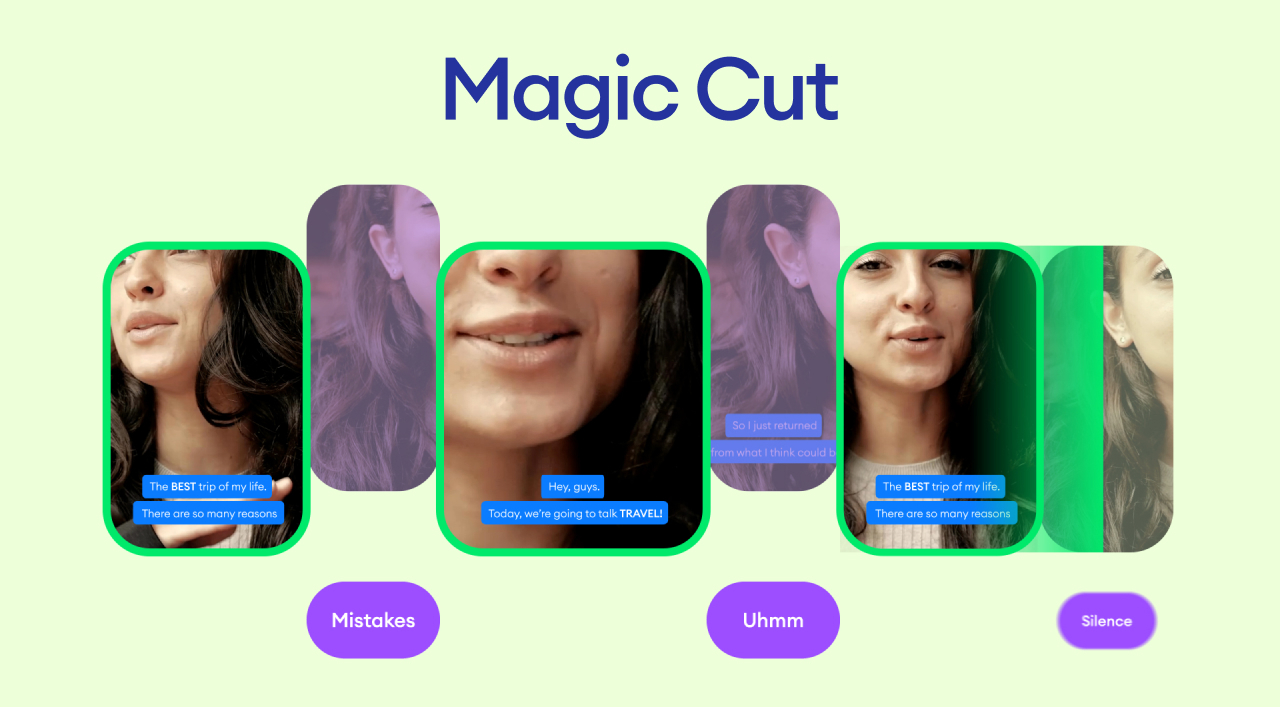
You can always lean on the Magic Cut tool to trim the fat of your video, instantly removing any filler words or awkward pauses with a click. The AI behind Magic Cut will polish any bad takes and leave you with the perfect parts of your recording, making it easier for viewers to digest.
To use Magic Cut, follow these steps:
- Click on or highlight the scene(s) in your timeline you would like to make more snappy.
- Click on Magic Cut in the top left of the timeline. Wait for a few seconds (or a minute, depending on the length of your video), and there you have it! A magically clean video.
Add Titles

Titles are a handy way to catch the eye of your audience whilst they’re scrolling, helping them to understand the topics and themes that your video covers. Think of them as a chapter in a book that helps a reader decide where they want to skip to.
To add titles:
- Click Text in the sidebar.
- Write your text in the text box.
- Change font, color, and size of the text.
- Add animations or effects.
- Choose where you would like the title to sit in your video by dragging it around your screen. You’re good to go!
Step 4: Optimize Your Video for Engagement
Add Subtitles
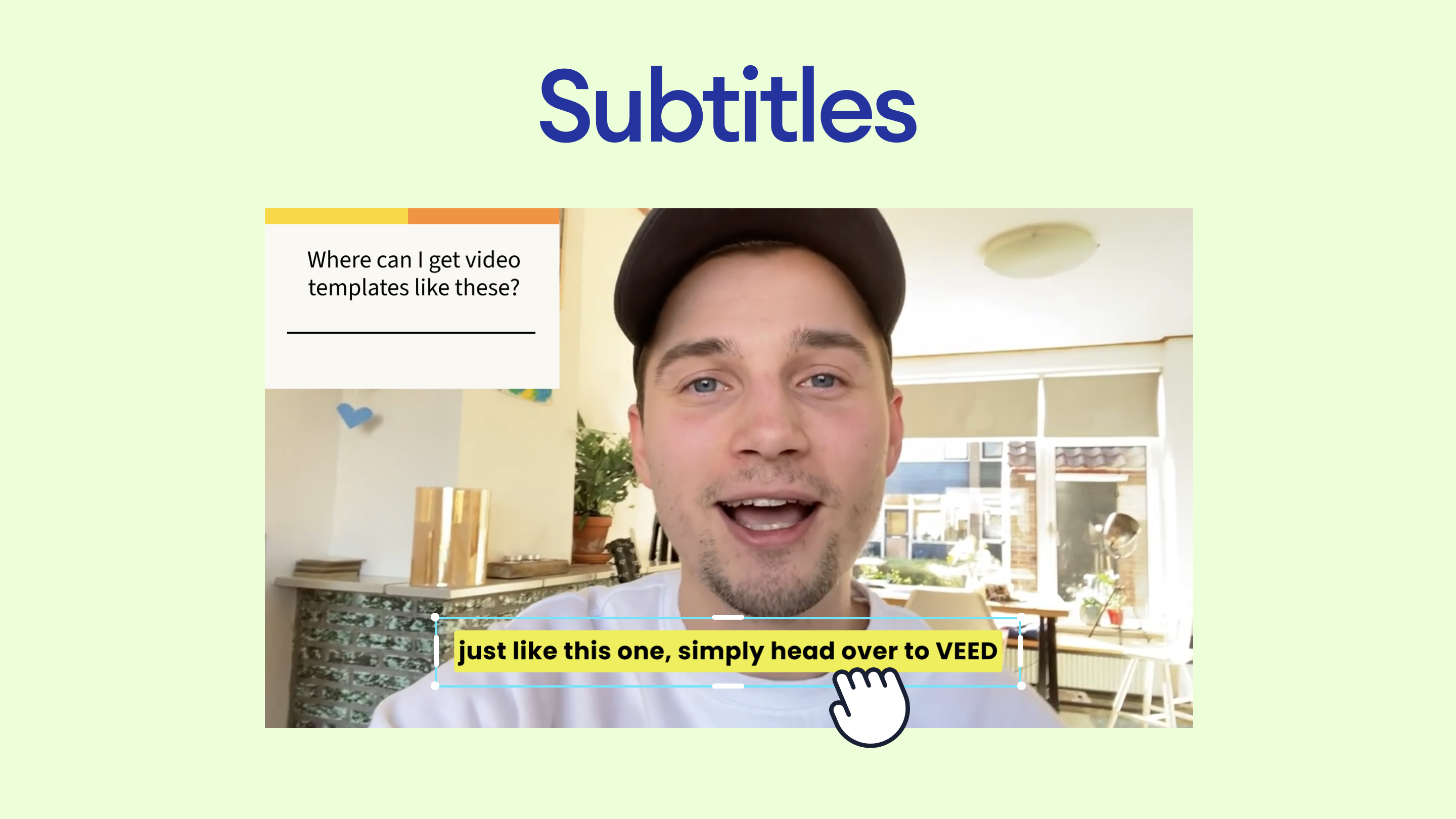
No creator can afford to avoid taking note of the 77% of internet users who only watch videos with subtitles. If somebody watches your video in a loud environment, whether it be the subway or a shared office, you don’t want to miss out on any potential engagement.
Here’s how you can take advantage of VEED’s quick and easy Subtitles feature and add them to your video:
- Once you’re happy with your video, click Subtitles in the sidebar on the left.
- It’ll take just a few seconds to see subtitles pop up on your video.
- Our subtitles are generated with 98.5% accuracy, but feel free to edit anything you’re unhappy with.
- Customize the subtitle style, font, and colors. You can even add animations or highlight specific words. Enjoy the extra engagement!
Include Translations (If Targeting a Global Audience)

A quick way to expand your video’s audience is to translate your videos into different languages. This way, you can engage international audiences even if you don’t speak their native tongue.
It’s simple:
- Click Subtitles.
- Click Auto Subtitle to generate your subtitles.
- Select a language (there are over 100 to choose from!).
- Click Translate.
Add a Progress Bar

A progress bar on a video is an important indication for viewers with shorter attention spans as lets them know how long the video is going to last.
Here’s how to add one:
- Head to Elements.
- Under Progress bars, select the bar that catches your eye by clicking on it.
- Experiment with the duration of the bar and animations.
- Drag the bar to where you would like it on your video. Progress complete!
Include a Call to Action

Remember what we said about call-to-actions being the most relevant and important thing you want your audience to do once they’ve watched your video? You may want them to sign up for a class, hit that like button, or head to a link in your bio.
It’s simple to add a CTA:
- Click Elements.
- Choose your CTA button.
- Change the color or add an animation.
- Drag the CTA button to where you would like it on your video and consider us, the viewers, ready for action!
Step 5: Export, Download, and Share
Once you’re confident with your completed video, click Done in the top right corner of your screen and hit Export Video. Then, you can share your video using a short URL or download the file to your computer, ready to upload to any platform.

Make Your Next Viral Talking Head Video Today
Feeling confident to drive more engagement with your talking head videos? With all of the relevant tips and tricks to make your video the best it can be, you’re officially ready for virality.
.jpg)


