.png)
Coming up with ideas, learning to write a script, recording a video, and editing it, are all parts of video production that, when trying to balance them all, can prove challenging. The process as a whole can be daunting, especially if you have limited skill or lack inspiration.
Enter Gen-AI Studio by VEED. It works as the ideal companion for video production, generating a decent first draft with a click of a button. Type a prompt and AI will do the complex stuff for you — perfect for when you’re feeling creatively stifled and finding it hard to get an idea off the ground. You’ll then have a video structure you can edit from, or send on to more skilled video editors in your team to work with.
Let’s look at how you can make this tool work for you and your team.
Jump to a specific section:
.png)
[#TOC1]What is Gen-AI Studio?[#TOC1]
Gen-AI Studio uses AI to generate a video using just your words in less than a minute. It’s powered with several of VEED’s features joining forces to convert your ideas into a workable video draft, including:
- AI Video Script Generator
- AI Text-to-Speech
- AI Avatars
- Auto-Subtitles
- Stock Footage Library
- AI Music Generator
- AI Title Creator
While these individual tools are already helpful in saving time in the editing process and creating a professional-looking video, Gen-AI Studio combines their power to further speed up and simplify the process. Instead of starting a project from scratch and using each tool separately to create and edit, Gen-AI Studio does it all for you in one click, and most importantly, in less than 60 seconds.
[#TOC2]Why use Gen-AI Studio[#TOC2]
Gen-AI Studio is a game-changer for creators, video editors and marketing teams alike.
- Spark Inspiration: Typing a short sentence will generate a project that pulls together stock footage, a voiceover, music, and subtitles, leaving you with a decent draft to get those creative juices flowing. Creative block happens to the best of us. Fortunately, even a fraction of an idea is enough for Gen-AI Studio to pull together the video content you’re thinking of.
- Save Time: Generating a first draft from your idea in one click means you can save hours of video production work so you can get to a final ready-to-use video quicker. Forget long-winded storyboarding sessions and learning complex editing techniques!
- Build Confidence: If you’re not particularly tech-savvy, Gen-AI Studio is the perfect tool to turn to. It’ll take care of any part of the editing process you may not be confident with, from adding subtitles to generating AI voiceovers, to piecing together the most suitable stock footage and audio from the extensive online library.
[#TOC3]How to use Gen-AI Studio by VEED?[#TOC3]
Trying Gen-AI Studio is simple, as long as you have an idea, or prompt.
Here’s how to try it:
Step 1: Head to Gen-AI Studio and type your prompt.
Head over to Gen-AI Studio. Next, type in your idea.
When typing in your idea, try to be as descriptive as possible, using short sentences instead of singular keywords. The more specific an idea is, the more likely you will get a video closer to your desired outcome.
Not sure where to start? Simply click on one of our suggestions underneath the field and start building up your prompt. Once your idea is locked and loaded, click on the purple star or hit enter.

.png)
Step 2: Customize your AI-generated video.
Once the first version of your video is generated, you can preview it. If it's to your liking, skip to step 3. If not, you now have the option to tweak it in the studio. Here's what you can customize:
- Script: On the left hand-side, you can modify the script of your video. The script is broken into sentences, making it easier to find specific sections and edit them. You can also add or remove bits from the script. And the best part? Everything is updated in real-time on the preview.
- Aspect ratio: If you opt out from using an avatar, you can also decide whether you want your video in landscape (16:9) or portrait (9:16). However, if your video contains an avatar, it will always be in 9:16.
- Avatar, language, and voice: Not only can you select an avatar that fits the vibe of the video, but also the language and the voice.
- Captions: Select from a range of cool and funky caption styles for your video.
- Music: Control the mood of your video by selecting a beat that goes well with the topic.
Once you're satisfied with the final result, click on Done.

Step 3: Export and share
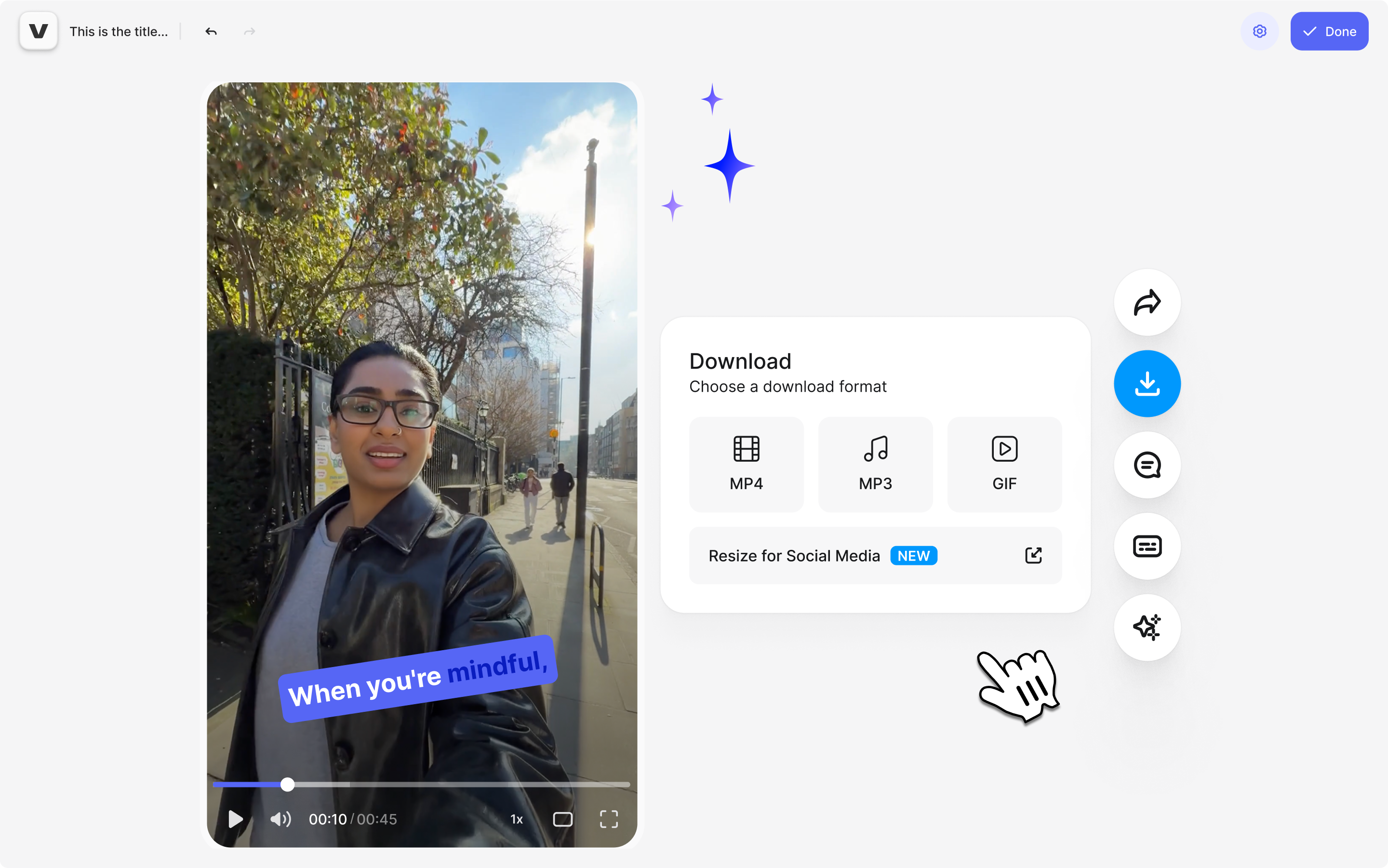
Next, you will be taken inside the VEED editor, with your project locked and loaded in the timeline. At this point, you're welcome to add some finishing touches. Or simply export your video.

To get the final export, click on Done again, select the desired quality, and hit Export Video. Once the video finishes exporting, you're welcome to share it.
Turn ideas into videos that connect
Ultimately, all you need to make a professional-looking video is have an idea. We’ve got you covered if you’re struggling with prompts, and VEED’s AI tools will generate the perfect draft video for you to work from when you’re struggling with creative block. You can wave goodbye to long, stilted storyboarding sessions and focus on honing your draft video into a pitch-perfect project.
Whether you’re looking to save time while editing or build your content strategy skills, AI Text-to-Video is integral in helping take the edge off a frustrating video production process. Give it a go and get inspired!
.jpg)
.png)