Editing videos the traditional way—scrubbing endlessly through timelines, struggling to find the exact second your speaker pauses, or hunting down that elusive "uhm"—can be tough. It's time-consuming, tedious, and often frustrating, especially if you're creating short-form content or trying to quickly repurpose key moments from longer recordings.
But what if editing your videos could be as straightforward as editing a simple text document?
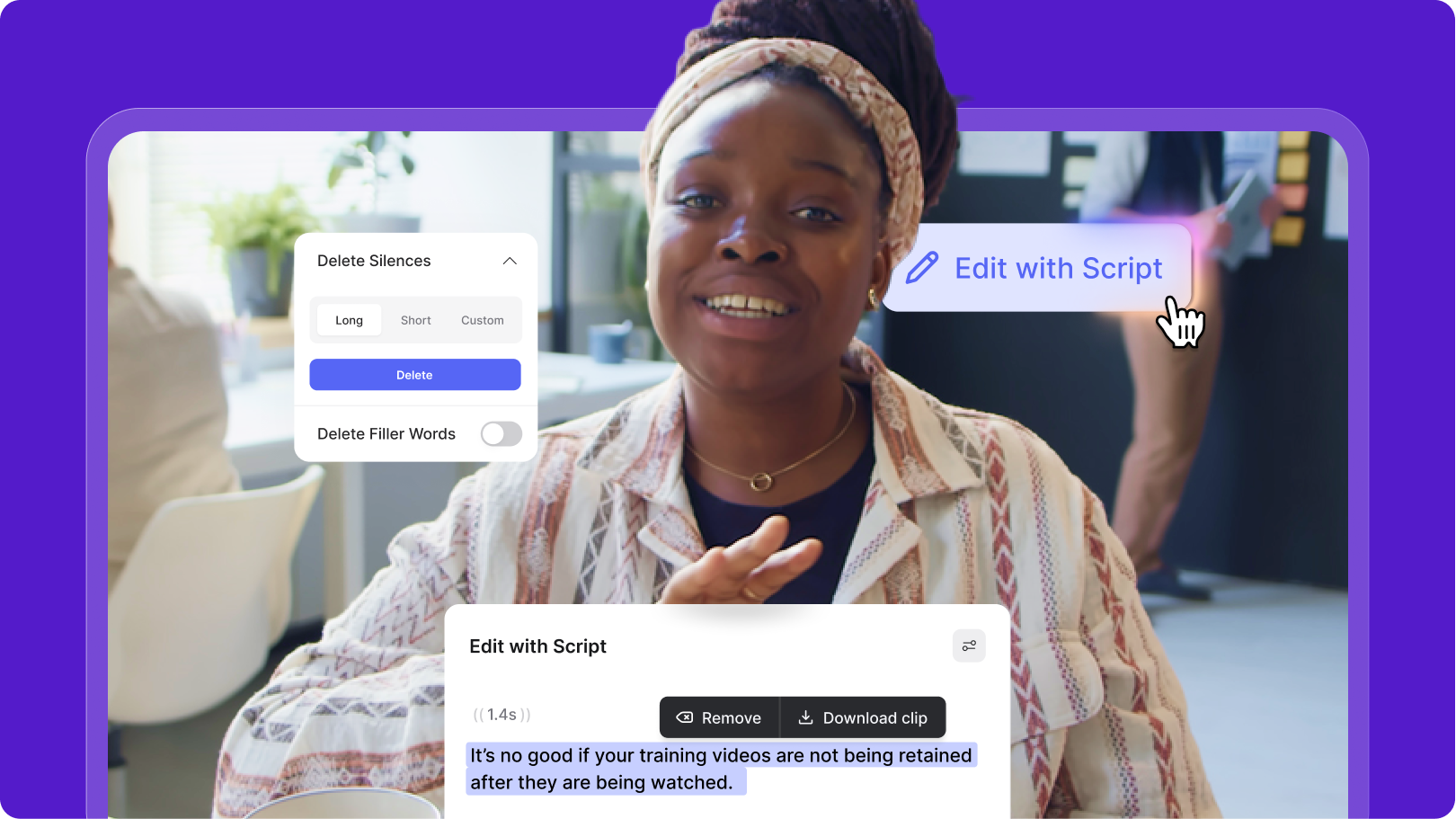
We're excited to introduce Edit with Script, VEED’s latest AI-powered feature that makes editing videos as easy as editing a document.

What is Edit with Script?
Edit with Script by VEED transforms video editing from timeline battles into a seamless, text-based editing experience, no matter what your use case. By converting your video into an interactive transcript, you can cut, trim, and shape your content just by editing words.
With Edit with Script, you can:
- Cut and trim effortlessly: Select and delete unwanted segments of your video by simply removing corresponding text from the transcript. No more precise dragging or tedious playback reviews. Just highlight and delete, and your video instantly adjusts.
- Instantly remove filler words: Videos naturally include filler words like “uhm” and “ahs” that disrupt smooth communication. Edit with Script automatically detects these filler words, allowing you to remove them with just one click. Your transcript and video update simultaneously, leaving behind only polished content.
- Automatically eliminate awkward silences: Pauses and silences can negatively impact viewer engagement, especially in social-first content. Edit with Script quickly identifies and removes these gaps, customizing the silence duration you'd like to target.
- Create clips of key moments effortlessly: Easily select any part of the transcript and export it instantly as a standalone clip. This makes repurposing content for different platforms quick and straightforward.
This intuitive, transcript-driven approach means you'll never need to comb through your timeline manually again. You can swiftly repurpose podcast highlights, polish presentations, or create engaging social media clips directly from your browser.
Why use Edit with Script?
Easier and faster editing
Traditional video editing can be painfully slow, requiring precise timeline scrubbing and playback to identify exact editing points. Edit with Script eliminates this hassle by letting you edit directly through text. Removing a word or sentence instantly edits your video, dramatically accelerating your workflow and letting you produce more content in less time.
Social-first video creation
Perfect for creators, marketers, and teams focused on social media, Edit with Script empowers you to quickly create optimized short-form content. Easily extract highlights, quotes, or key moments from longer videos to fuel your social content. Your content becomes immediately shareable, polished, and ready to engage your audience.
Web-based simplicity
Unlike heavy desktop applications, Edit with Script is fully browser-based. There's no software to download or install, and you can access your projects from any device at any time. This flexibility means you can edit, collaborate, and publish videos on-the-go or at your desk, fitting seamlessly into modern workflows.
How to use Edit with Script
Getting started is really simple.
Simply upload your video or fire up an existing project on your VEED workspace.
Right above the timeline, you will find the Edit with Script button. Click on it.

Next, if you already haven’t, you will be prompted to auto-transcribe your video (i.e. generate subtitles), if you already haven’t.

Once it’s done, you will have a transcript that you can modify to essentially edit your video…just like you would a text document.

At this point, there are a bunch of things you can do:
- Delete specific parts of the video: Simply select a part of the transcript you don’t like and hit delete/backspace on your keyboard. This will automatically remove the bit from your video.

- Instantly remove awkward silences: Click on the menu icon in the top-right corner above the transcript, and then click on Delete Silences (as shown in the screenshot below). Select the duration of the silences you want to remove and click on Delete. This will automatically remove awkward silences from your video.

- Easily export clips from your videos: Not a fan of manually repurposing clips from your videos from the timeline? Edit with Script lets you easily export specific parts of your videos by simply selecting them from the transcript. Once selected, click on Export and follow the steps.

Ready to simplify your video editing workflow?
Edit with Script makes video editing faster, easier, and smarter—transforming your tedious timeline wrangling into effortless text-based editing. Whether you're repurposing podcast highlights, polishing presentations, or quickly creating social clips, Edit with Script is your new best friend.
Stop scrubbing, start editing—experience the future of video editing today.
.jpg)
.png)