Short-form videos are all the rage these days.
And for good reason.
🤯 73% of consumers prefer to watch short videos to learn about a product or service.
🚀 Short-form videos deliver higher ROI than all other marketing formats.
🔥 Videos under 90 seconds retain 50% of viewers.
The good news: you don’t need to reinvent the wheel. You can simply cut up your existing longer videos — think webinar recordings, podcast episodes, presentations, etc. — and repurpose them into shorter clips.
To make this easier, we have launched Clips: a convenient AI-powered tool that automatically repurposes longer videos into shorter, bite-sized content — perfect for social media platforms.
Interested? Let’s dive into what Clips is and how you can leverage it to make ready-to-use short videos in just a few simple steps.

[#TOC1]What is Clips?[#TOC1]
Clips by VEED is an AI-powered tool that allows you to automatically transform your long-form video content into shorter social media clips. In just a few clicks, Clips identifies the most interesting bits (or the ones you specify with a custom prompt) in your video and converts them into multiple ready-to-share reels.
The tool also auto-centers any speakers in your short videos and even adds subtitles, making them ready to be used as TikToks, Instagram Reels, or YouTube Shorts.
[#TOC2]How to Use Clips to Repurpose Your Videos with AI?[#TOC2]
Clips is content repurposing automated. Simply upload your longer footage and let AI handle the rest, and use the extra time to focus on creating more great content and growing your social media presence.
Here’s how.
Step 1: To start creating AI clips, click here.
Step 2: Once inside Clips, upload your long-form video. Alternatively, you can also drop a YouTube link.

Thinking of what to repurpose? Learn about 7 smart ways you can use VEED Clips.
Step 3: Next, the tool will ask you to specify the following:
- The original language being spoken in the video (for the subtitles)
- The desired aspect ratio for your clips (choose between portrait and landscape)
- Video goals (are you looking to create viral shorts, make highlights, or extract insights?) — this will help the AI shortlist the most relevant bits from your long-form video for the clips
- New! Specify if there are any parts of the video you'd like the tool to extract with a custom prompt (for example: "the part where I talk about the new product launch")
- The desired length of your clips
By providing these details, you take creative control over not just the look and feel of your clips, but also the kind of snippets you'd like for the AI to shortlist.
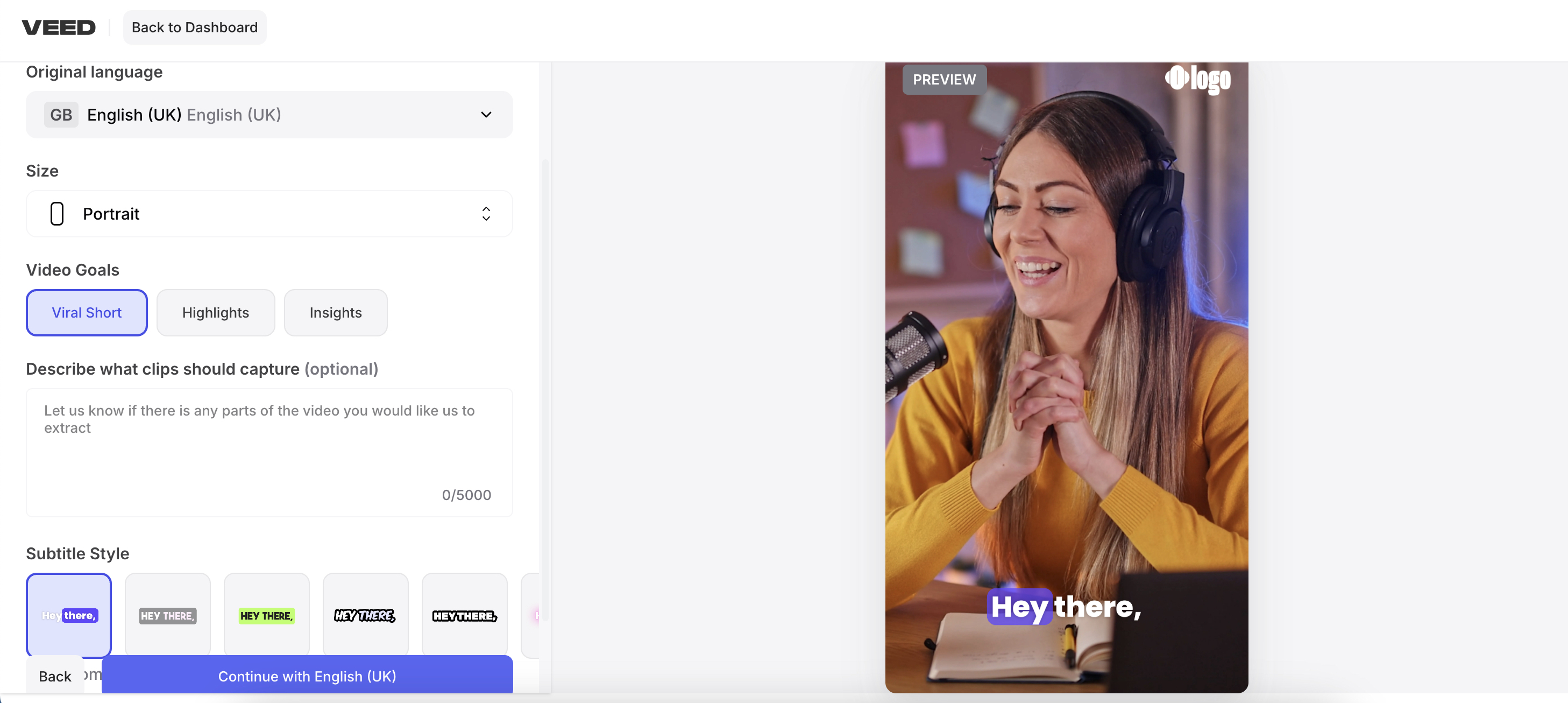
Step 4: Once you’re done specifying how you want your clips to look and feel like, click on Continue with [Your Chosen Language].
Grab a coffee, sit back, and relax, as VEED generates your AI Clips!

You may also choose to close the tab at this point — VEED will notify you once your clips are ready via email.
Step 4: Once your clips are ready, you will be able to watch and download them. It’s really as easy as that!
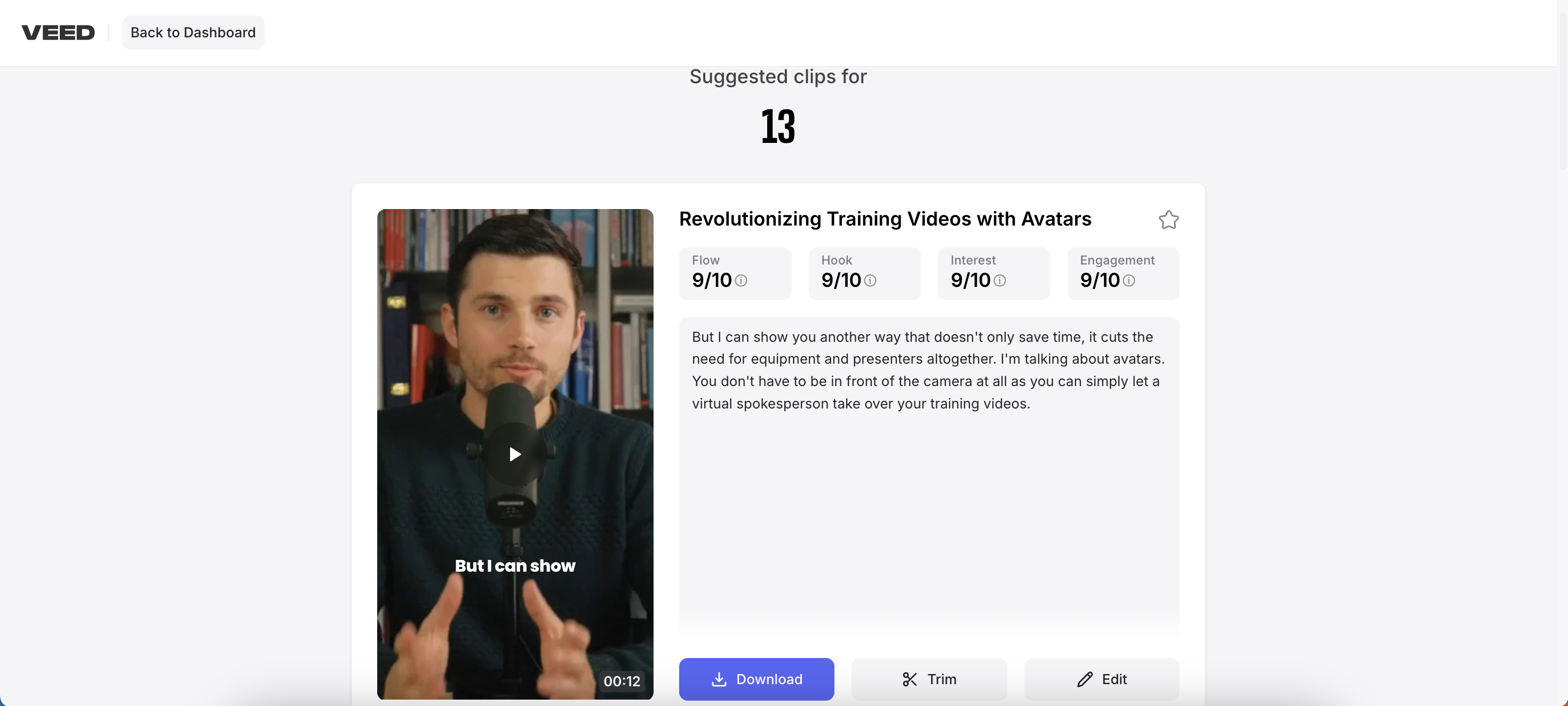
Step 5 (New!) Now you can use Trim with Text to adjust the length of your clip by expanding or shrinking the selected transcript — giving you precise control of your clips without touching the timeline.
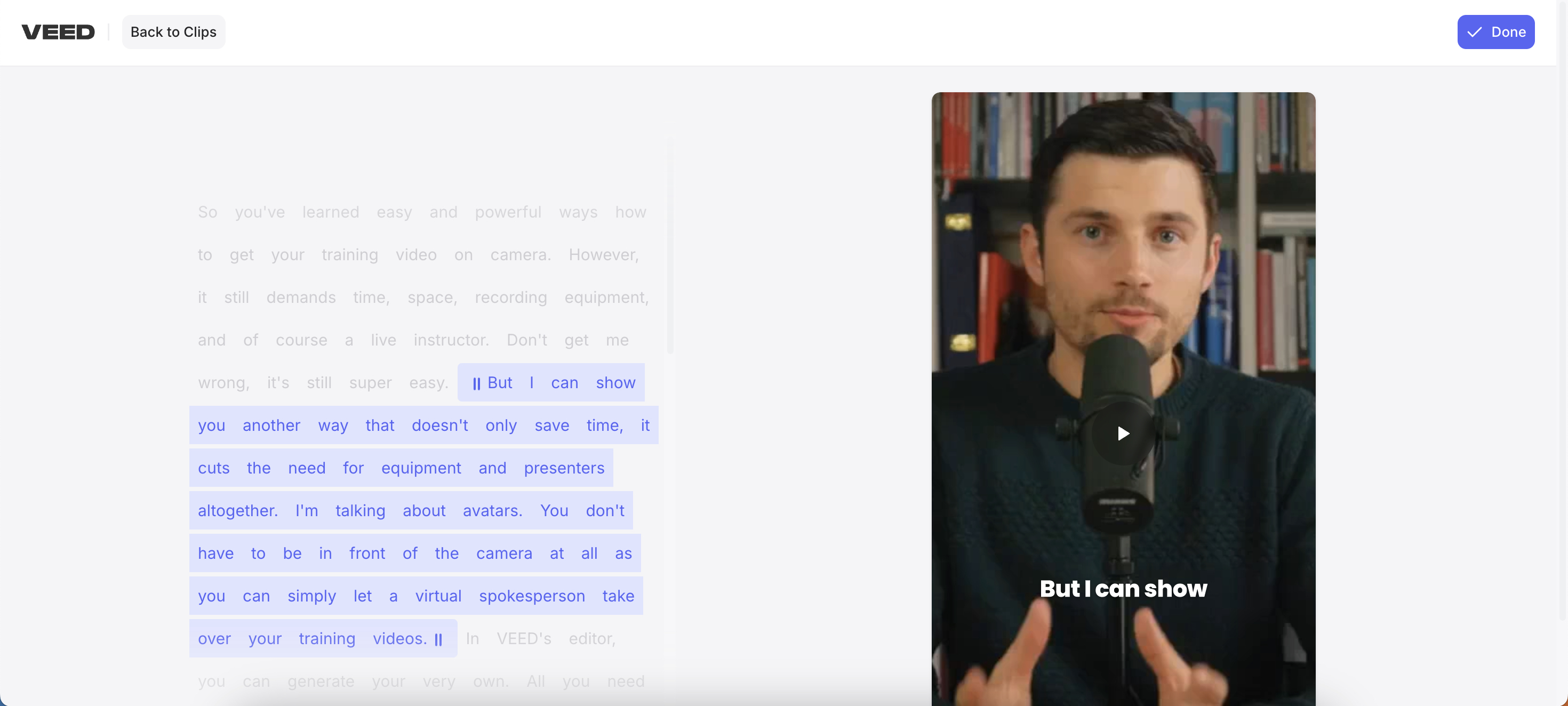
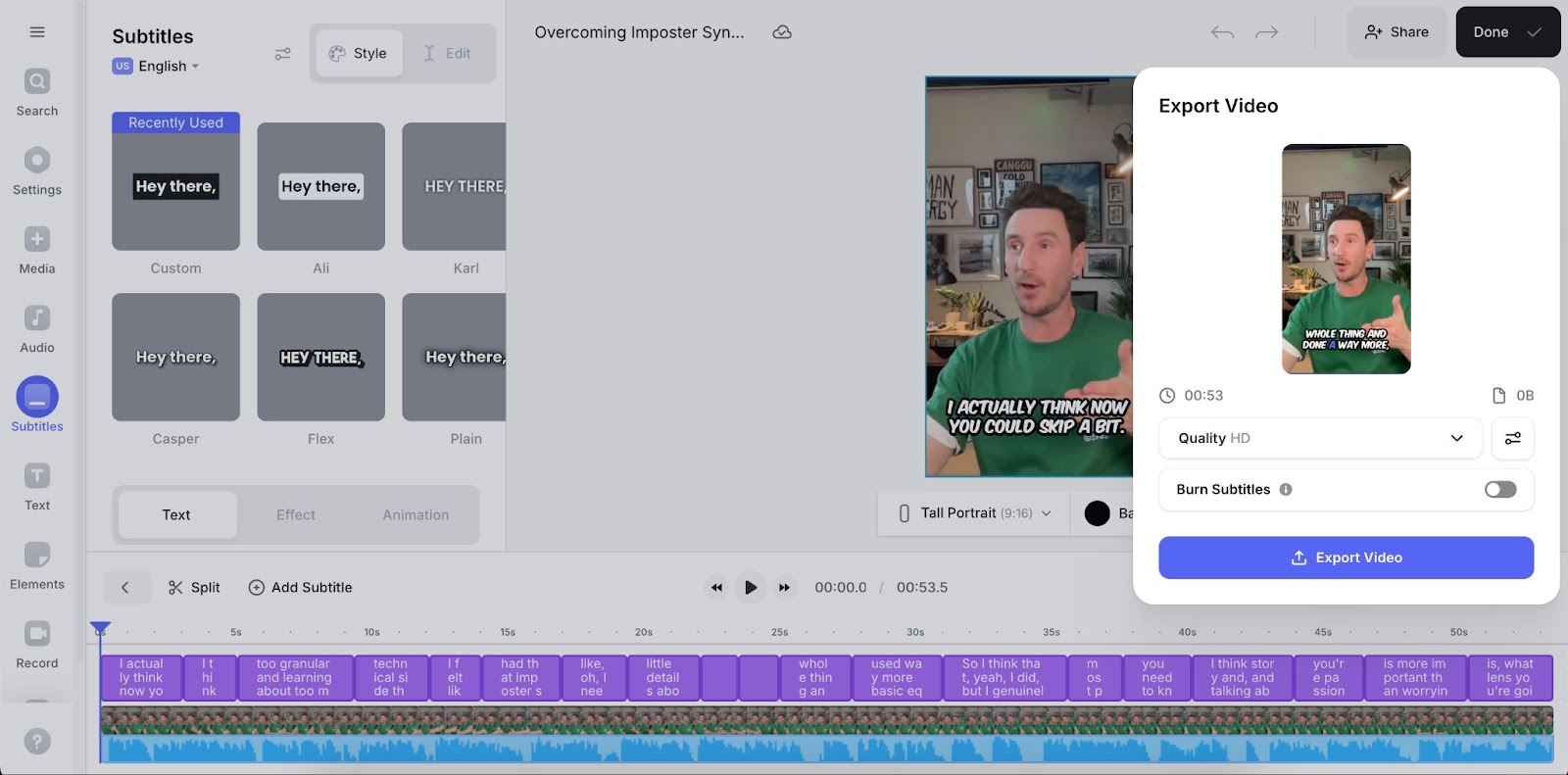
However, say for example, you want to change up the style of the subtitles, add some extra text, copyright-free music, or anything else to a selected clip. You can do so by clicking on the Edit button, which will bring you to the VEED editor with your selected reel locked and loaded. There, you can edit your clip to your liking on our highly intuitive online editor, packed with drag-and-drop functionalities and one-click tools to maximize ease of use.

Once you’re done, click on the Done button at the top right, and click on Export Video to render your clip, after which you’ll be able to share it.
Use Clips to Supercharge Your Short-Form Content
And there you have it. In just a few simple steps, you can create limitless short-form content for your social media. And the best part? The entire process is automated, meaning you don’t have to spend time chopping and refining the best bits of your long-form video yourself.
Sound appealing? Give it a shot yourself. Create AI Clips today!

.jpg)
.png)